Tips & Tricks
1. Install app as icon (iOS Chrome)
Open the website in Chrome. Tap the Share button (the square with an arrow) at the bottom, scroll down, and select "Add to Home Screen."
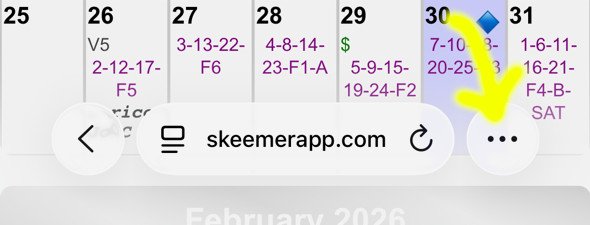
1. Click the three dots
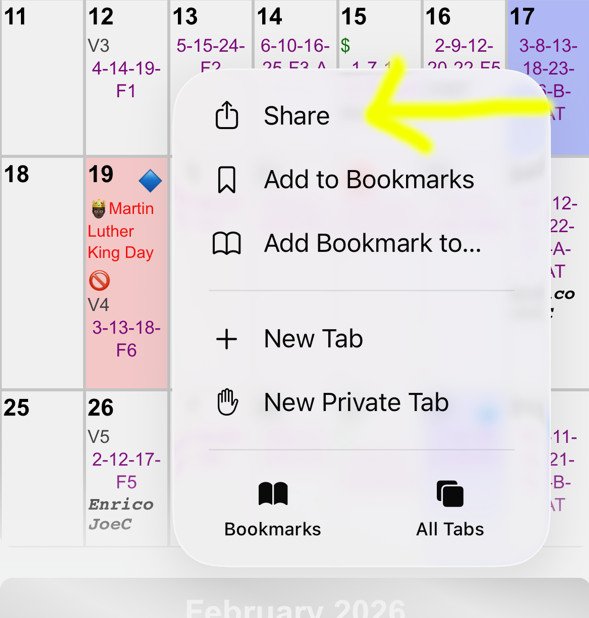
2. Tap Share icon
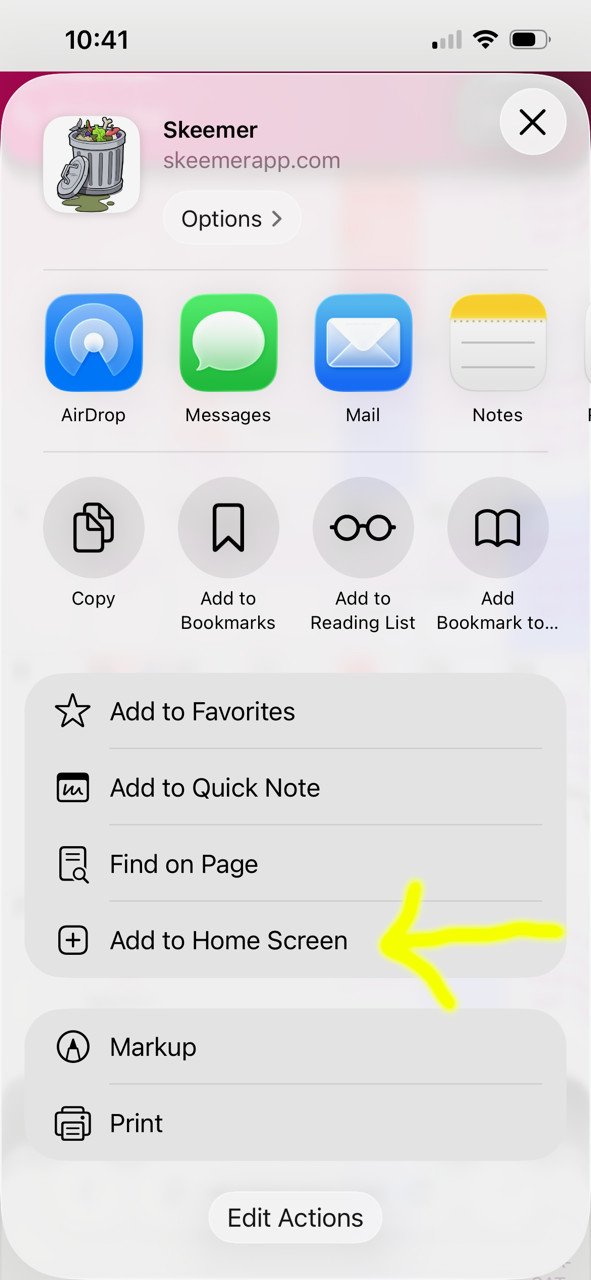
3. Scroll down and tap Add To Home Screen
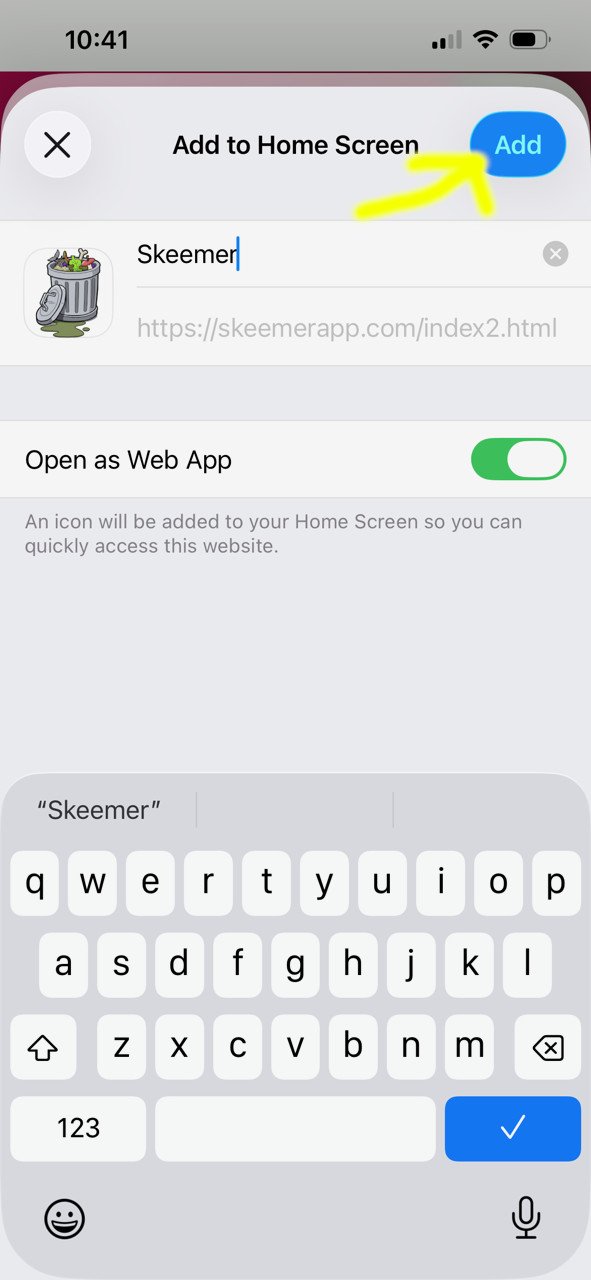
4. Select 'Add'
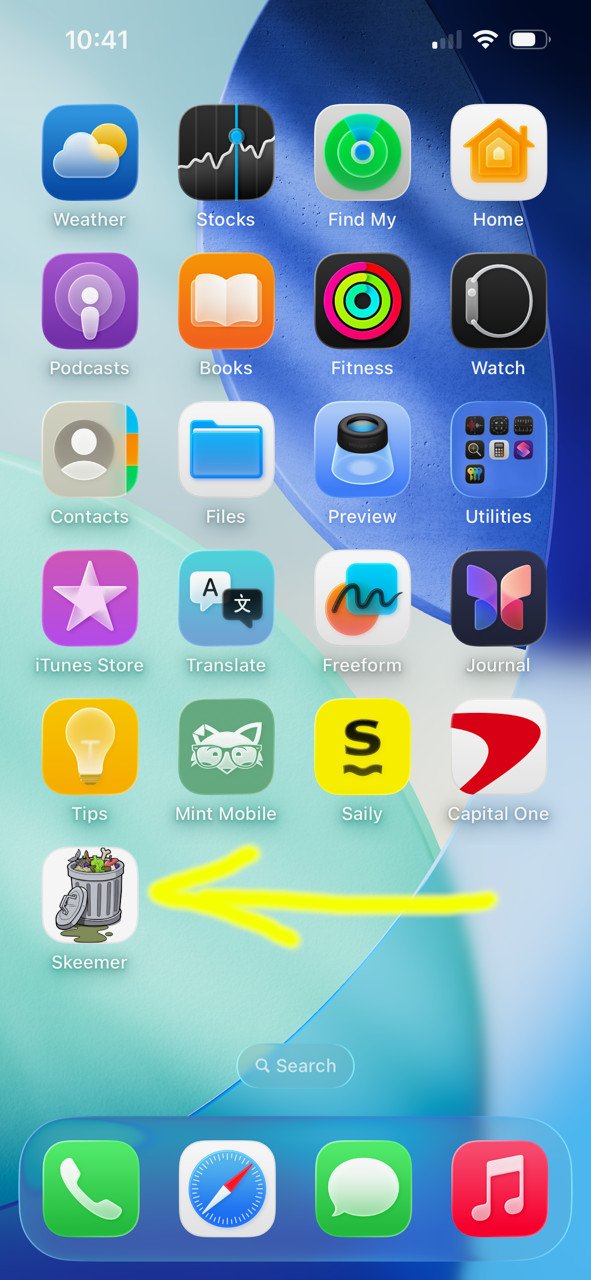
5. Icon is now on the screen!
1. Install app as icon (iOS Safari)
Open the website in Chrome. Tap the three dots button at the bottom, tap More, and select "Add to Home Screen."
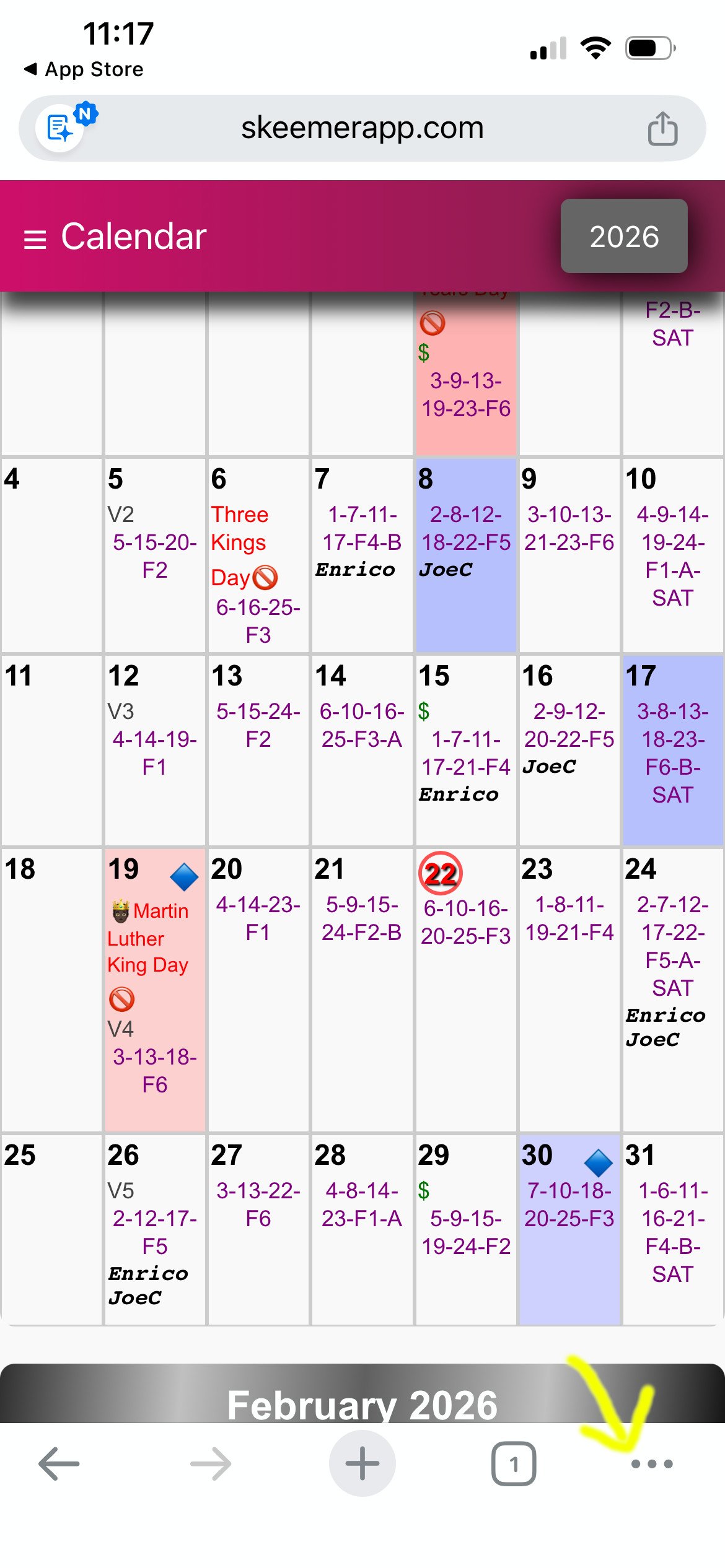
1. Click the three dots
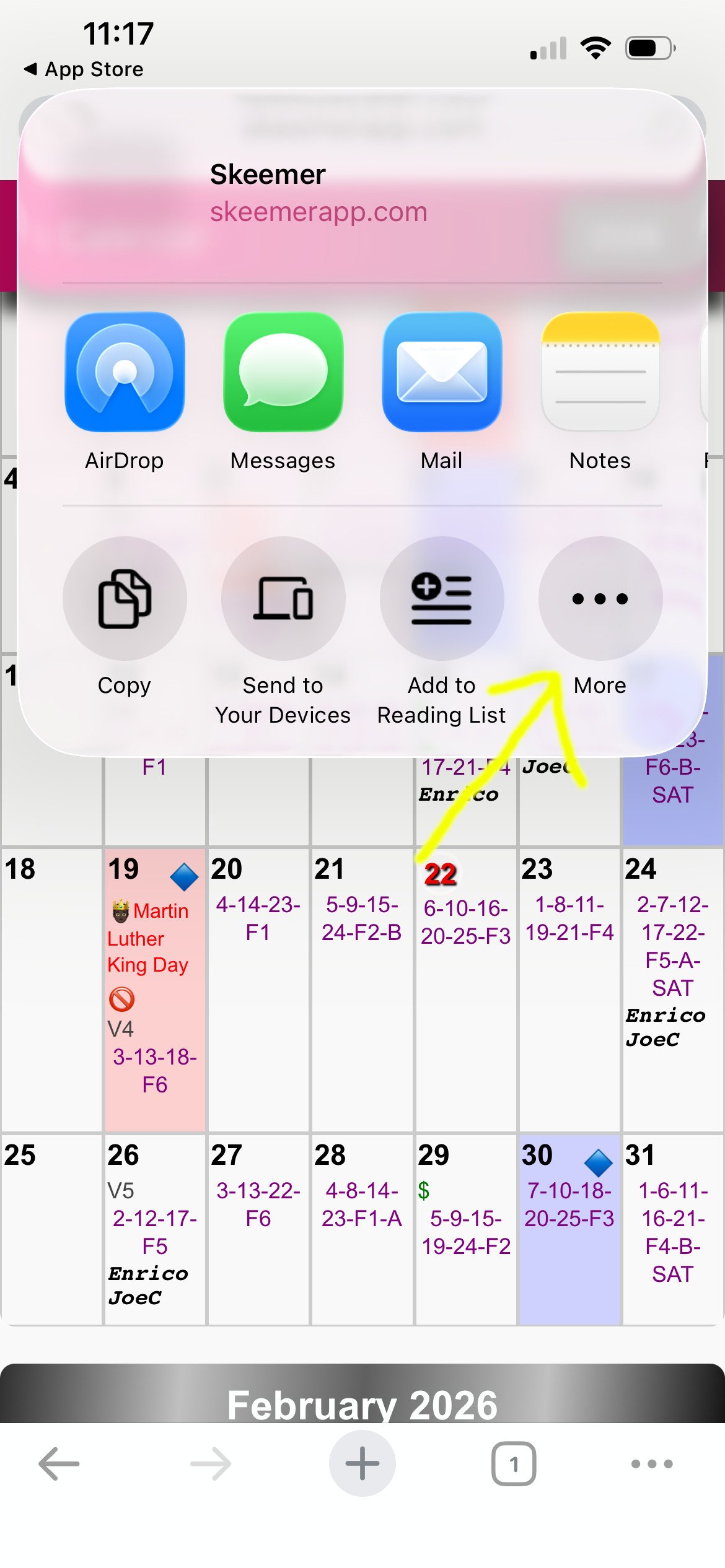
2. Tap More icon
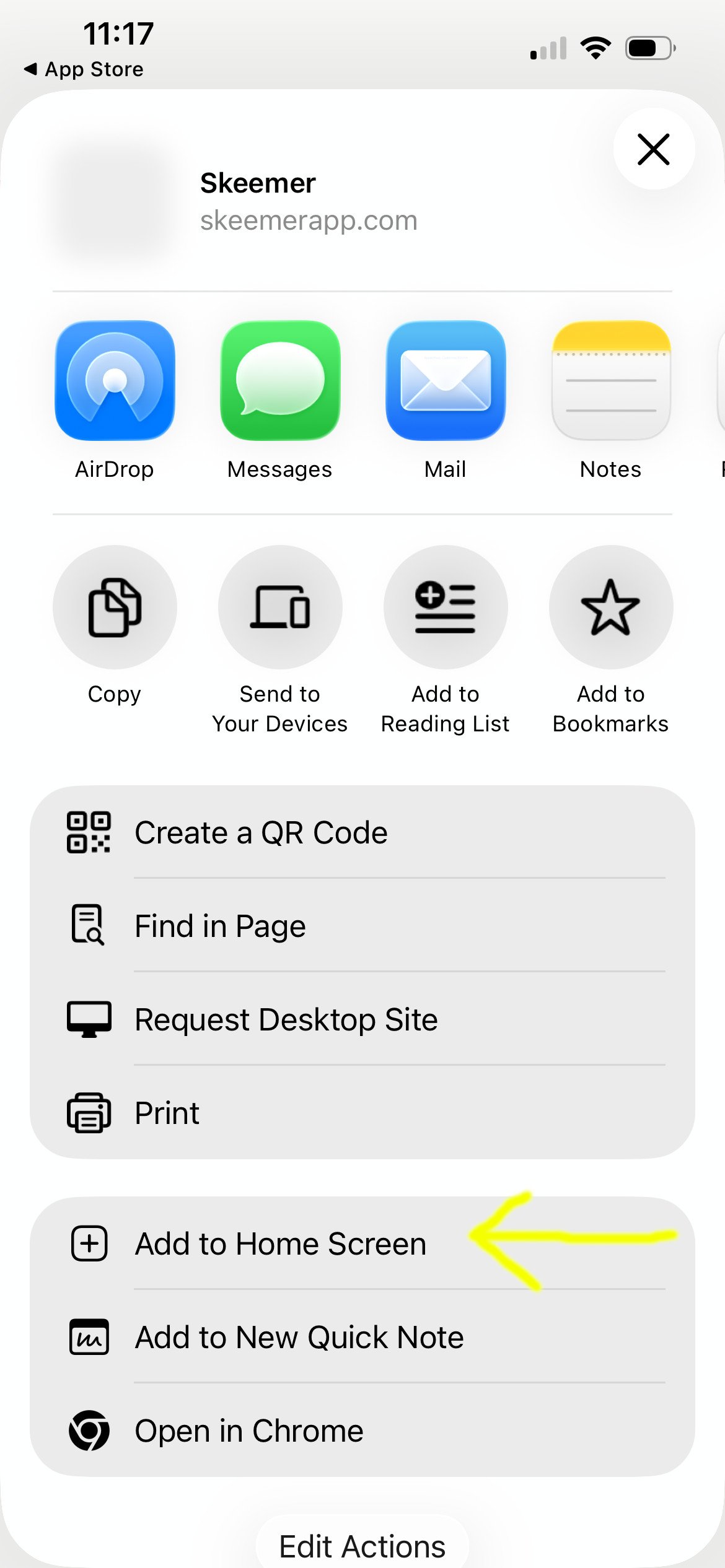
3. Scroll down and tap Add To Home Screen
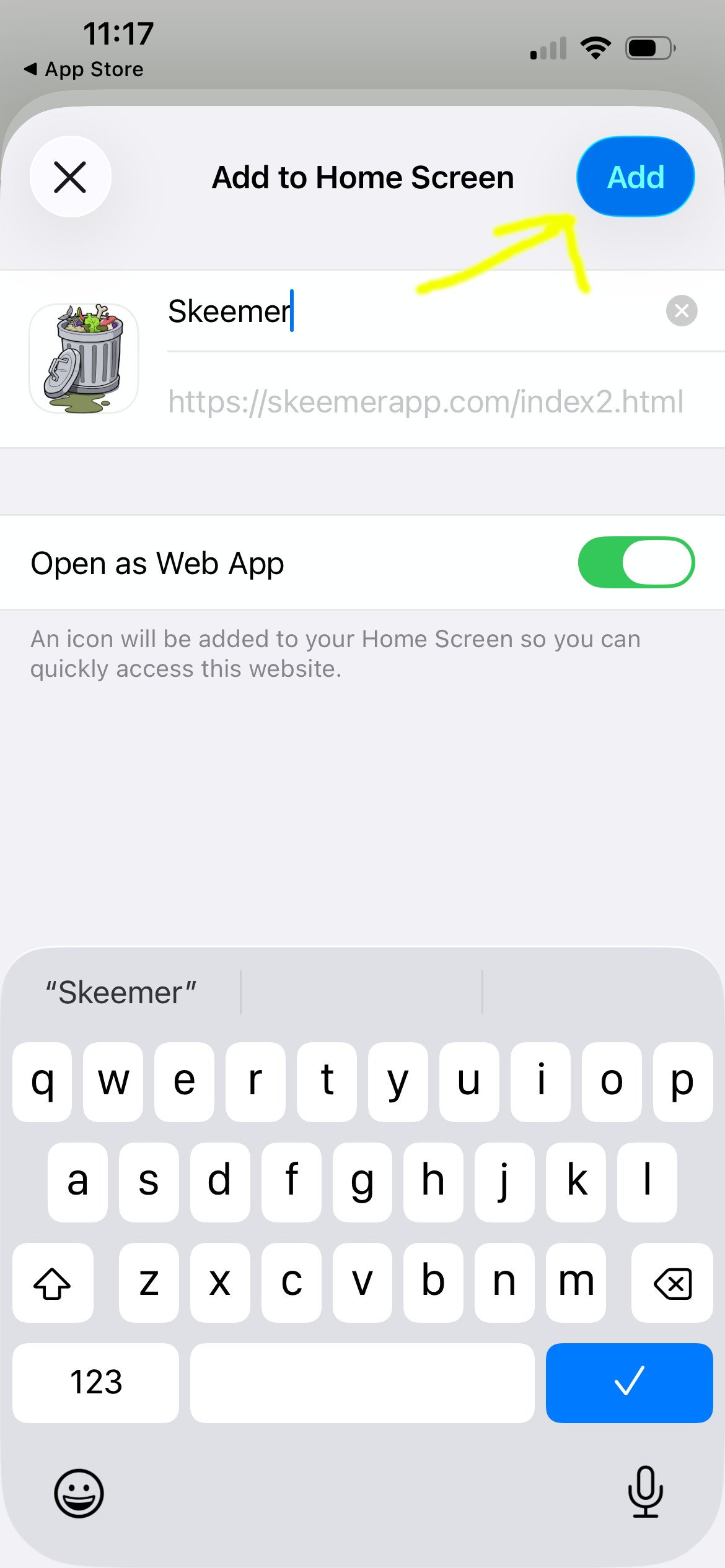
4. Select 'Add'
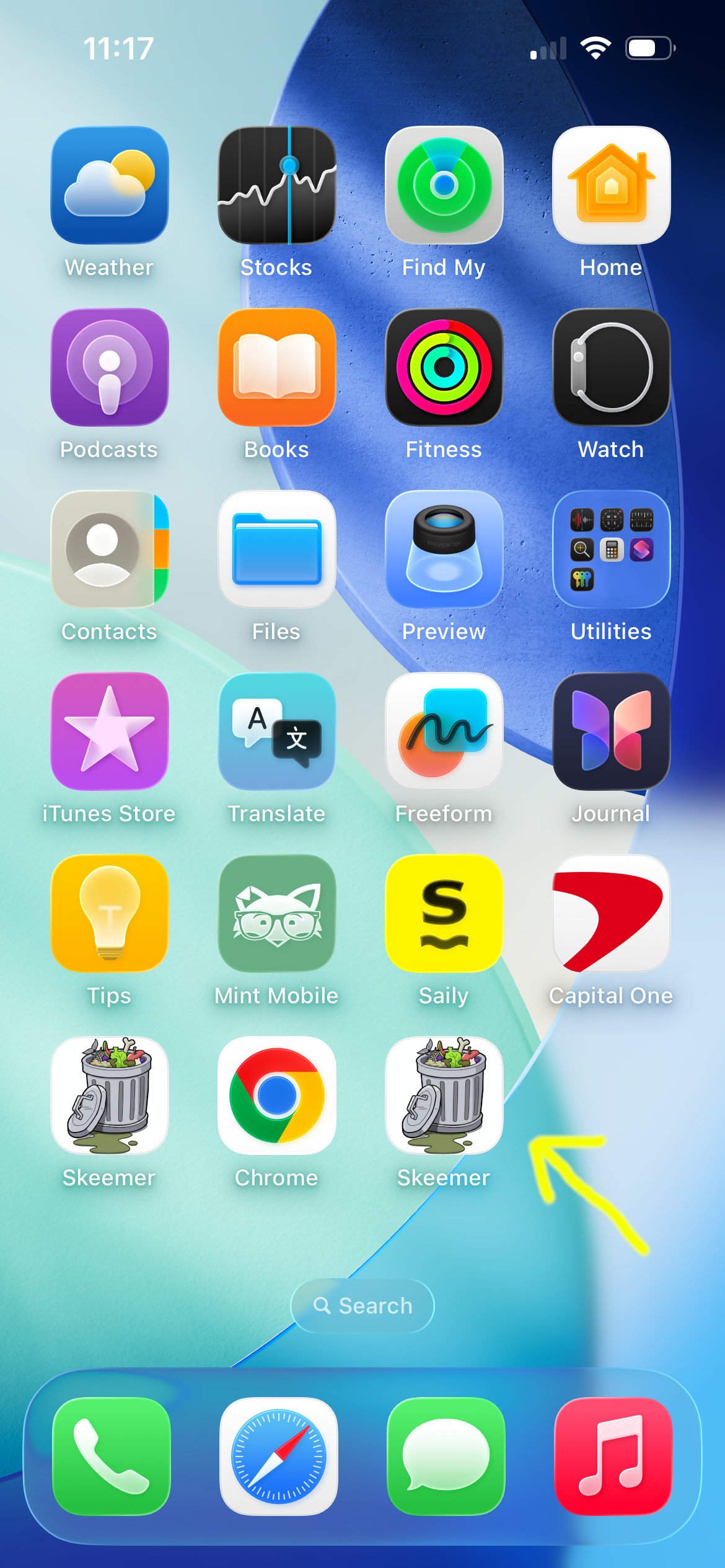
5. Icon is now on the screen!
3. Install app as icon (Android Chrome)
Open the website in Chrome. Tap the three dots button at the top, scroll down, and select "Add to Home Screen."
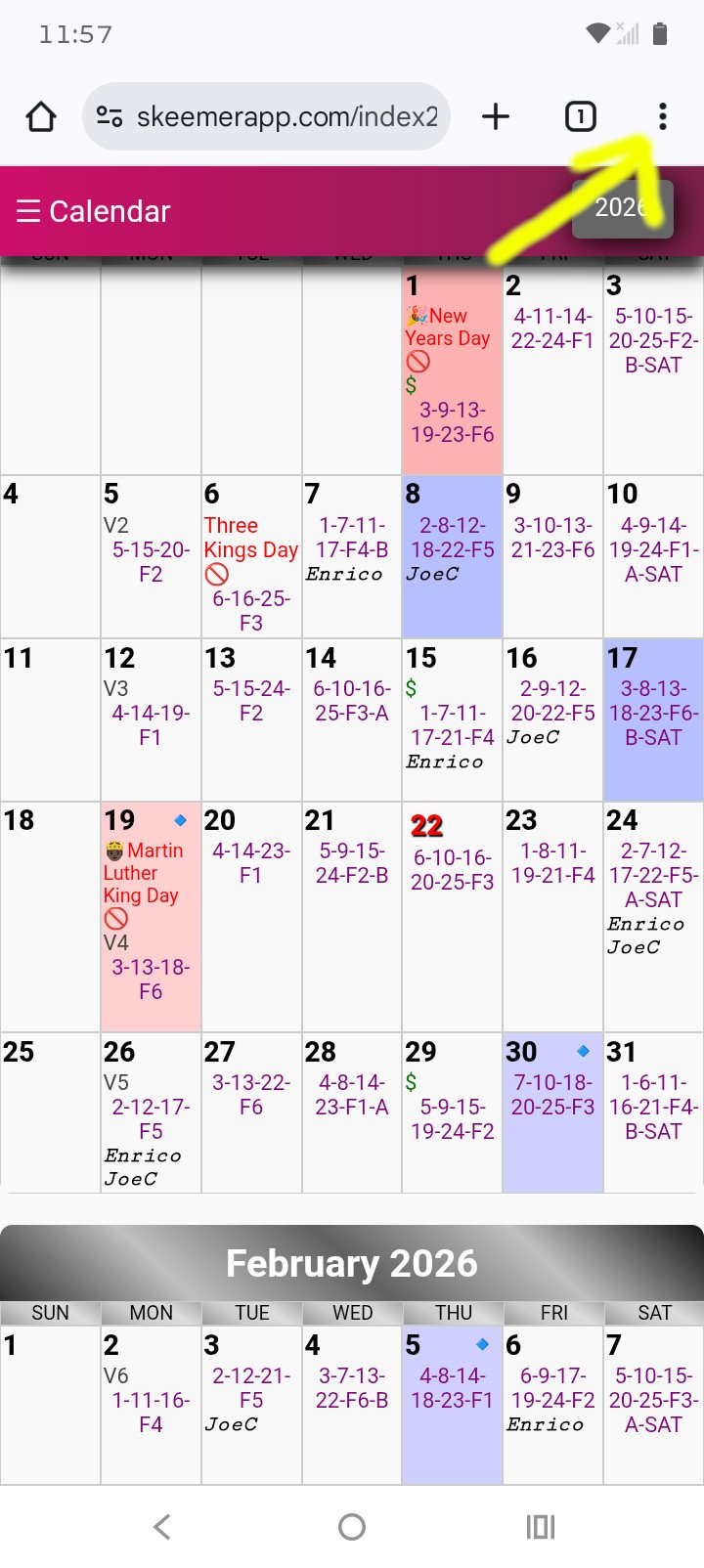
1. Click the three dots
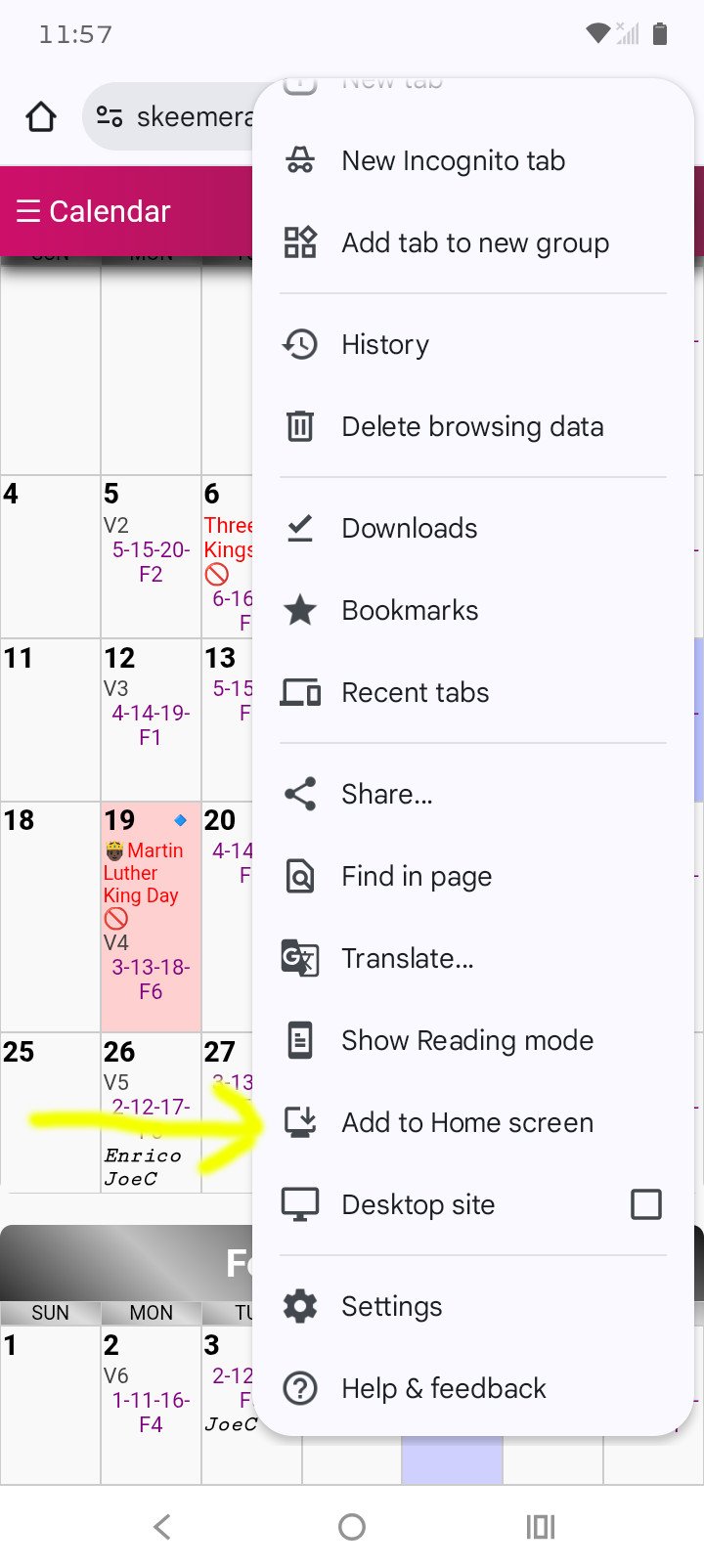
2. Tap Add to Home screen
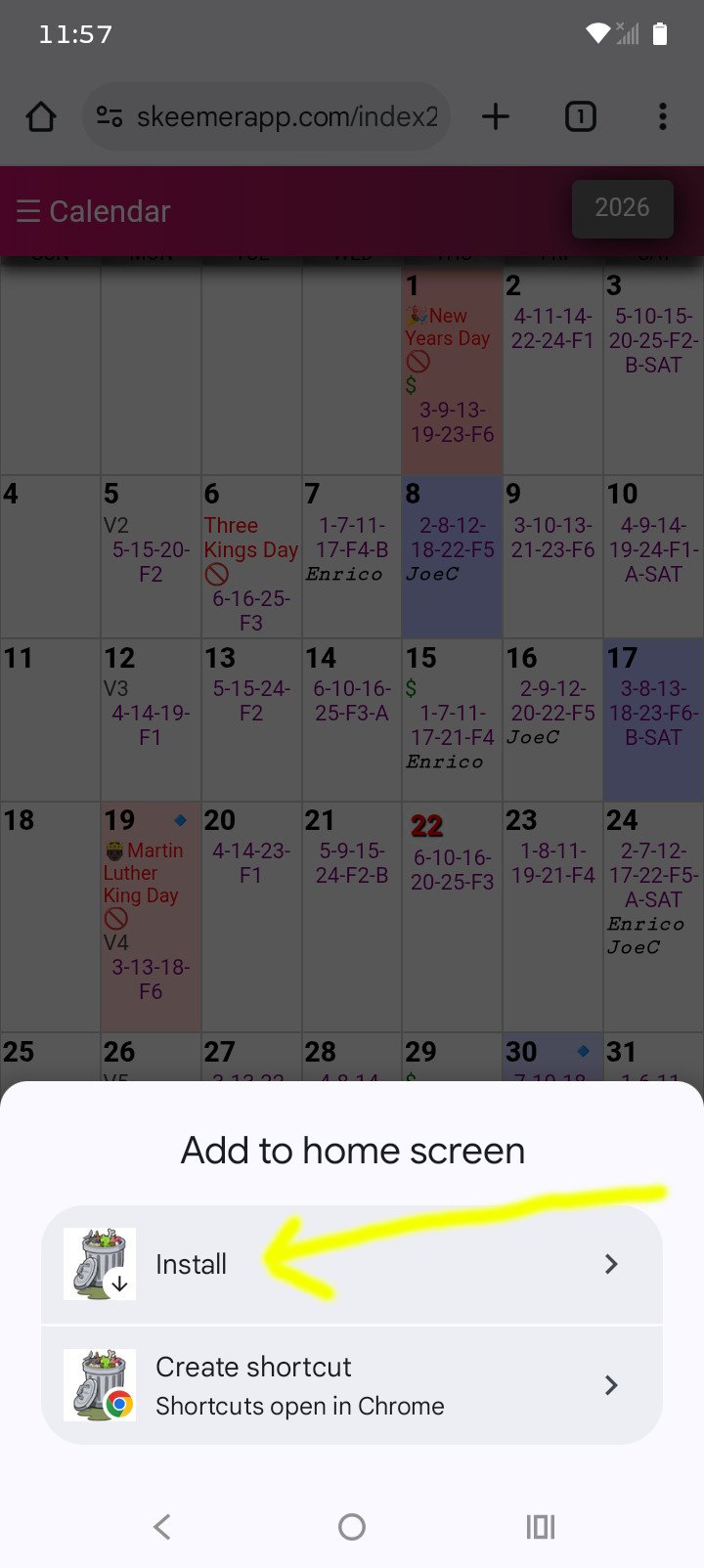
3. Tap Install
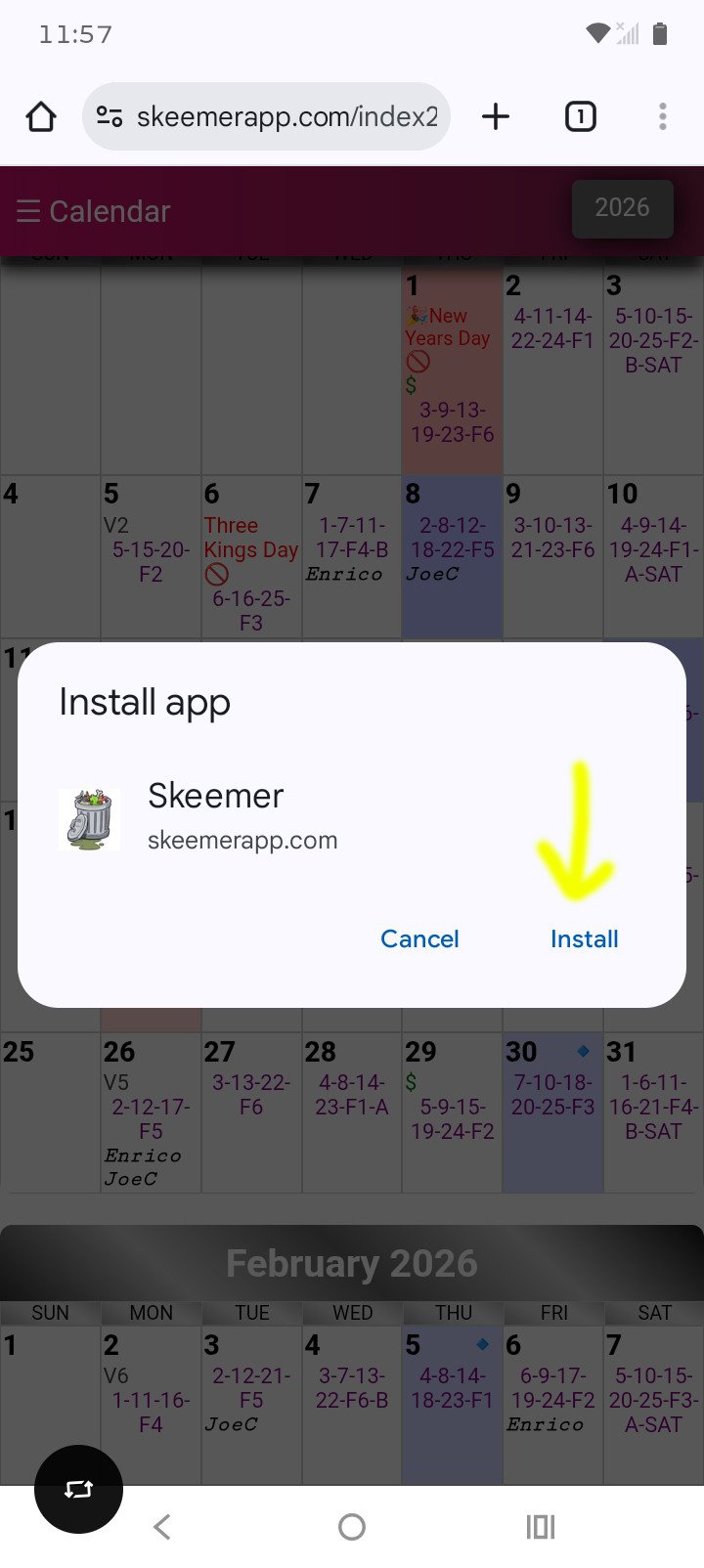
4. Tap Install Again
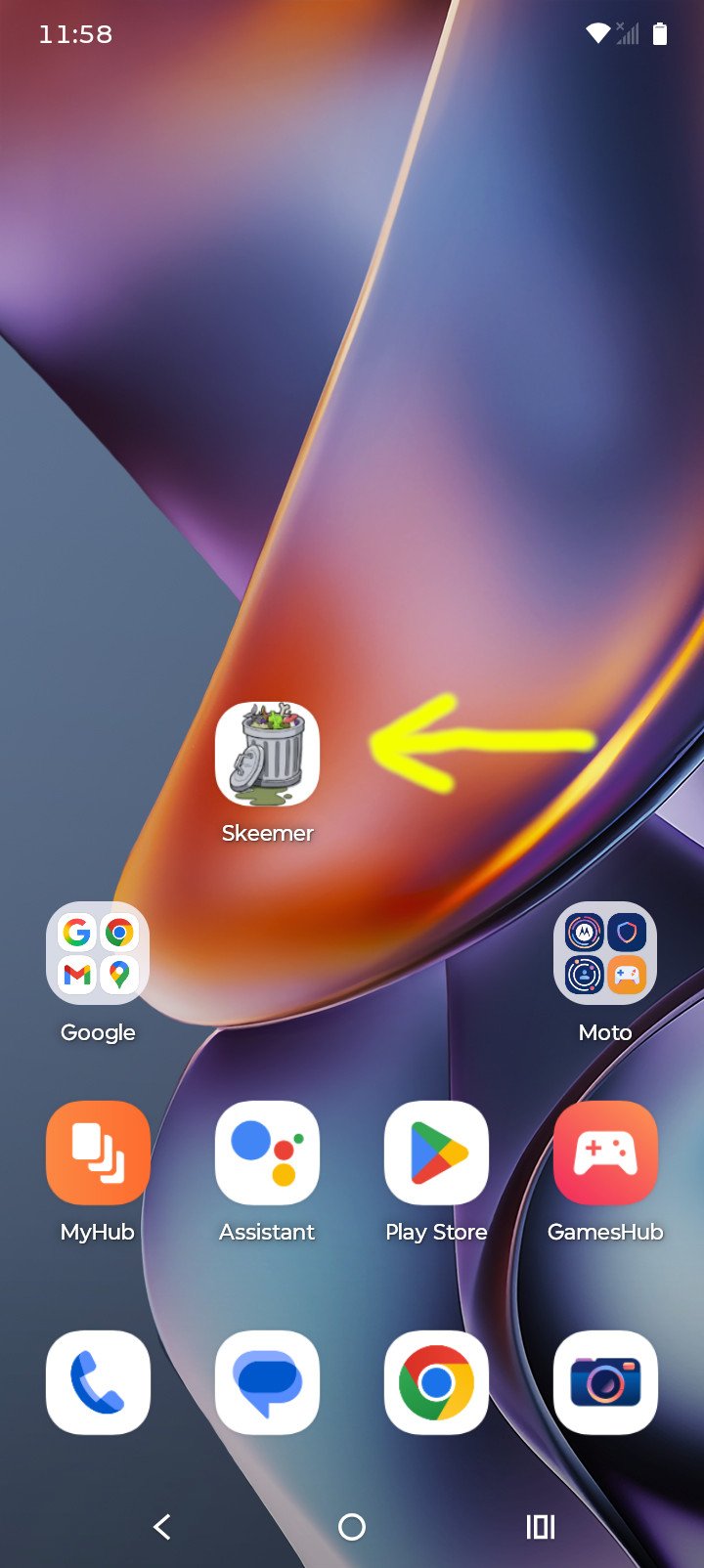
5. Icon is now on the screen!
4. Reduce font size (iOS Safari)
Tap the "Screen Options" icon in the address bar. Tap the smaller 'A' to reduce the text size to your liking.
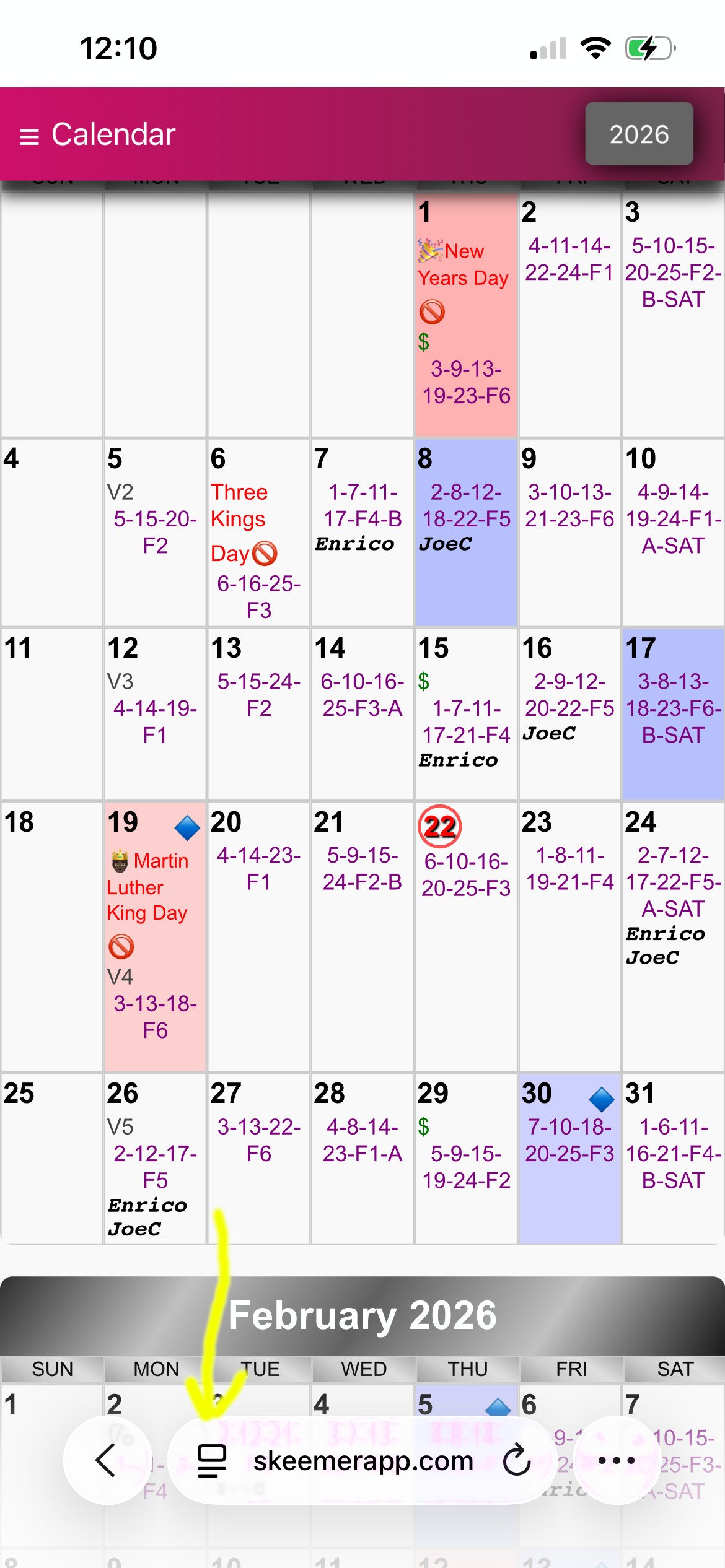
1. Click the screen options icon
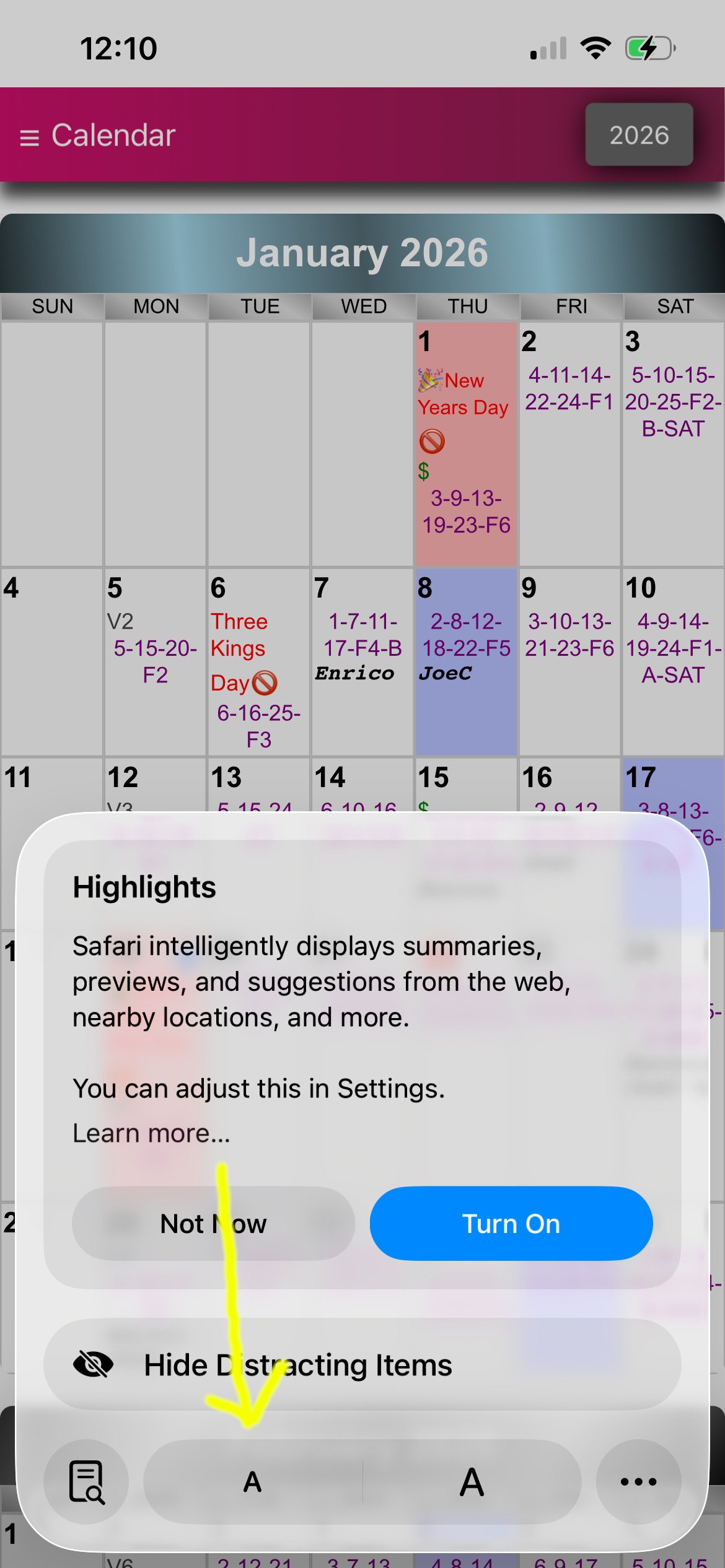
2. Tap the small A to reduce font size
5. Reduce font size (Android Chrome)
Go to Settings > Accessibility and adjust the Text Scaling slider.
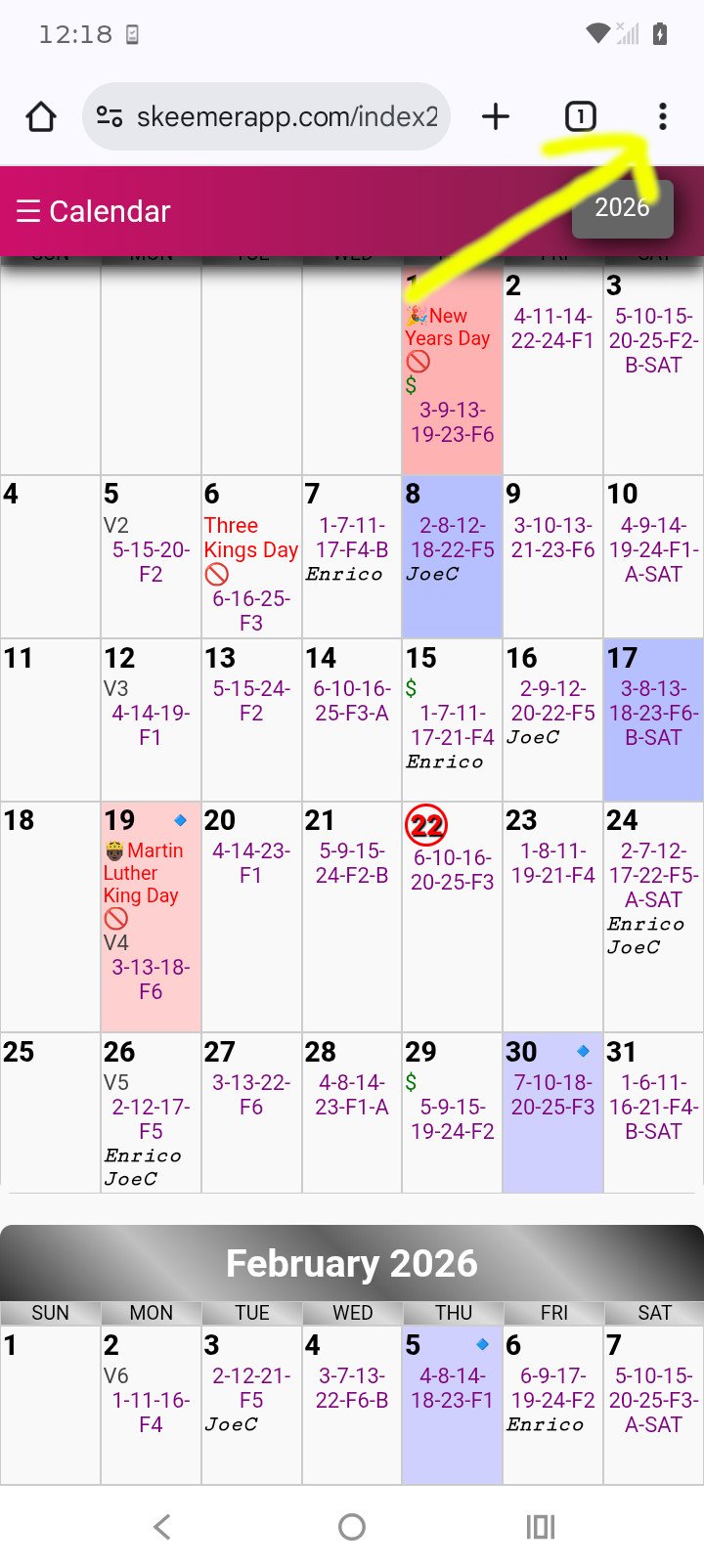
1. Click the three dots icon
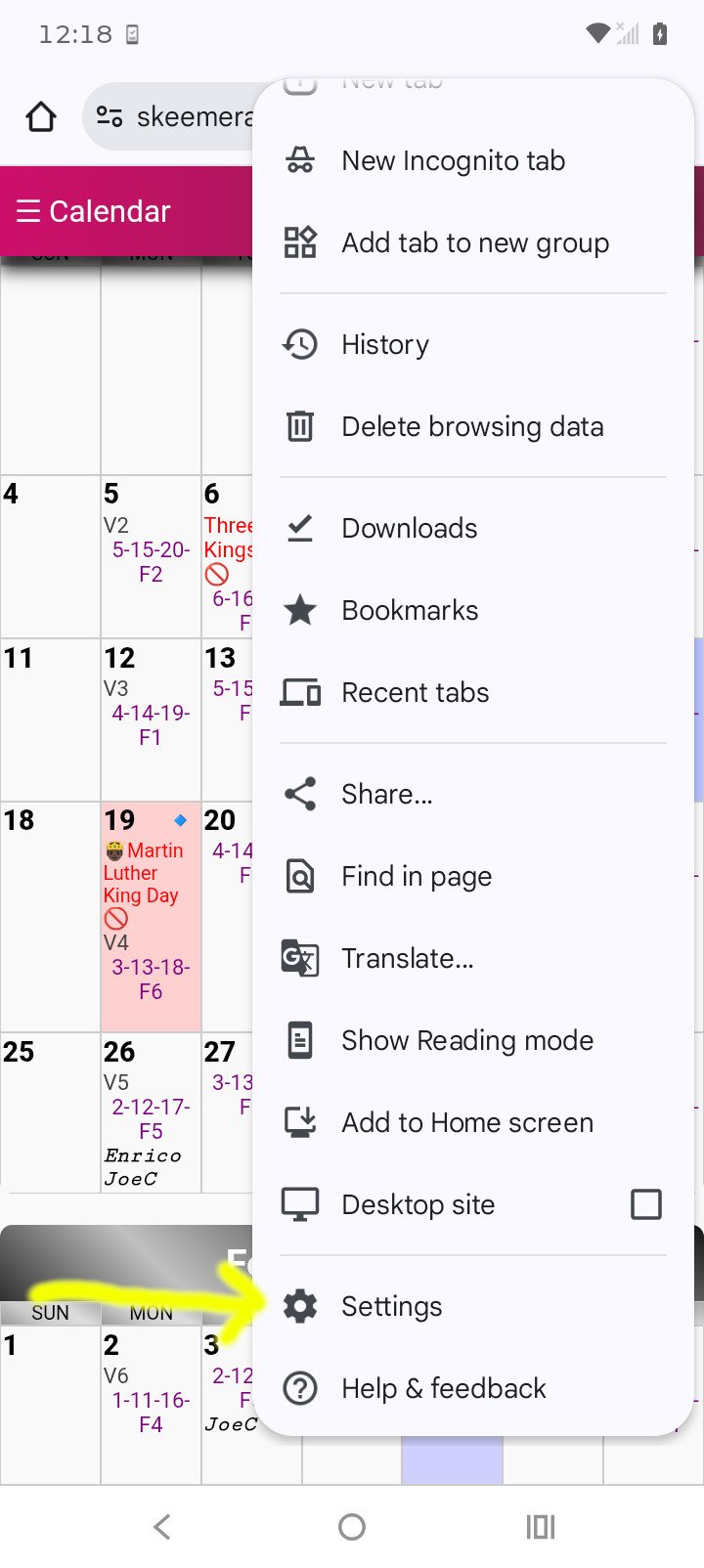
2. Tap the Settings icon
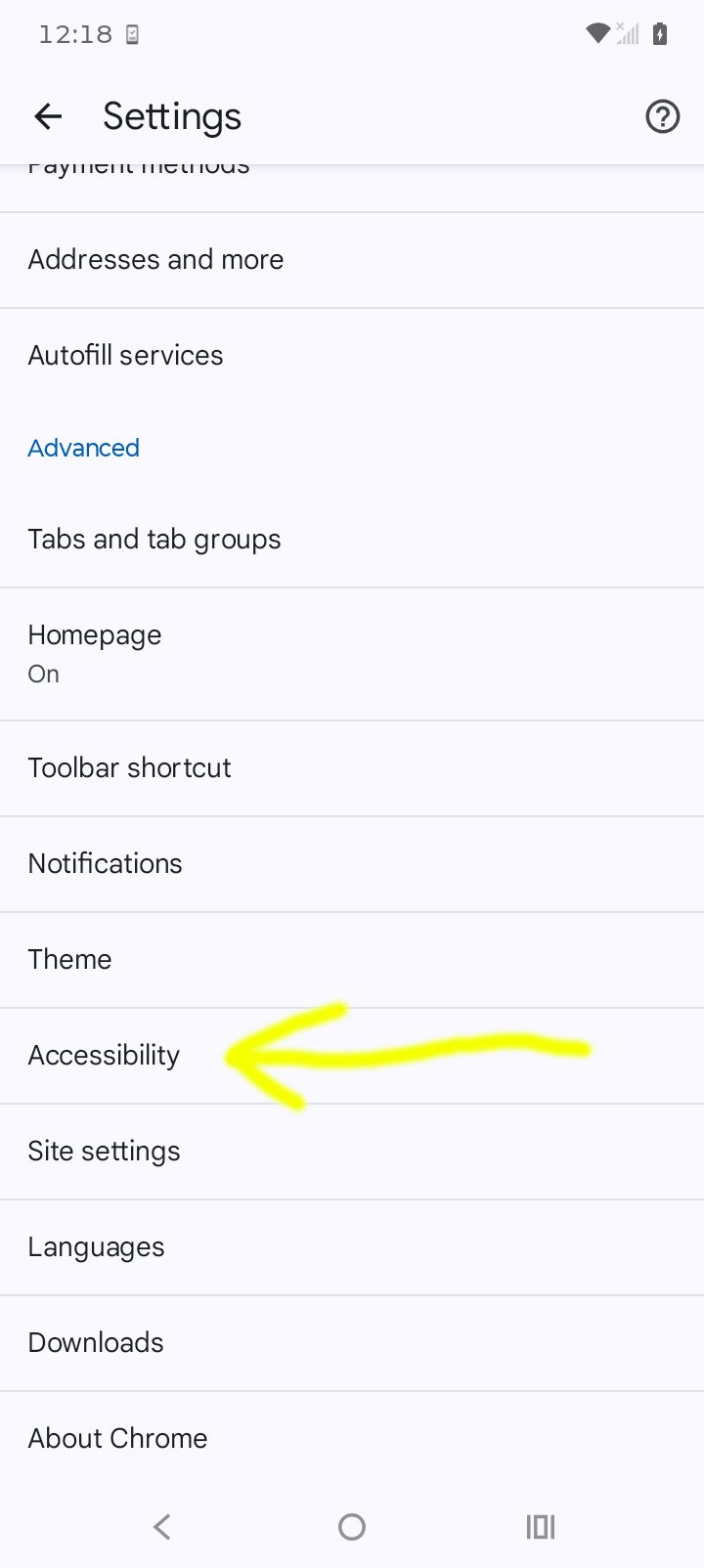
3. Tap Accessibility
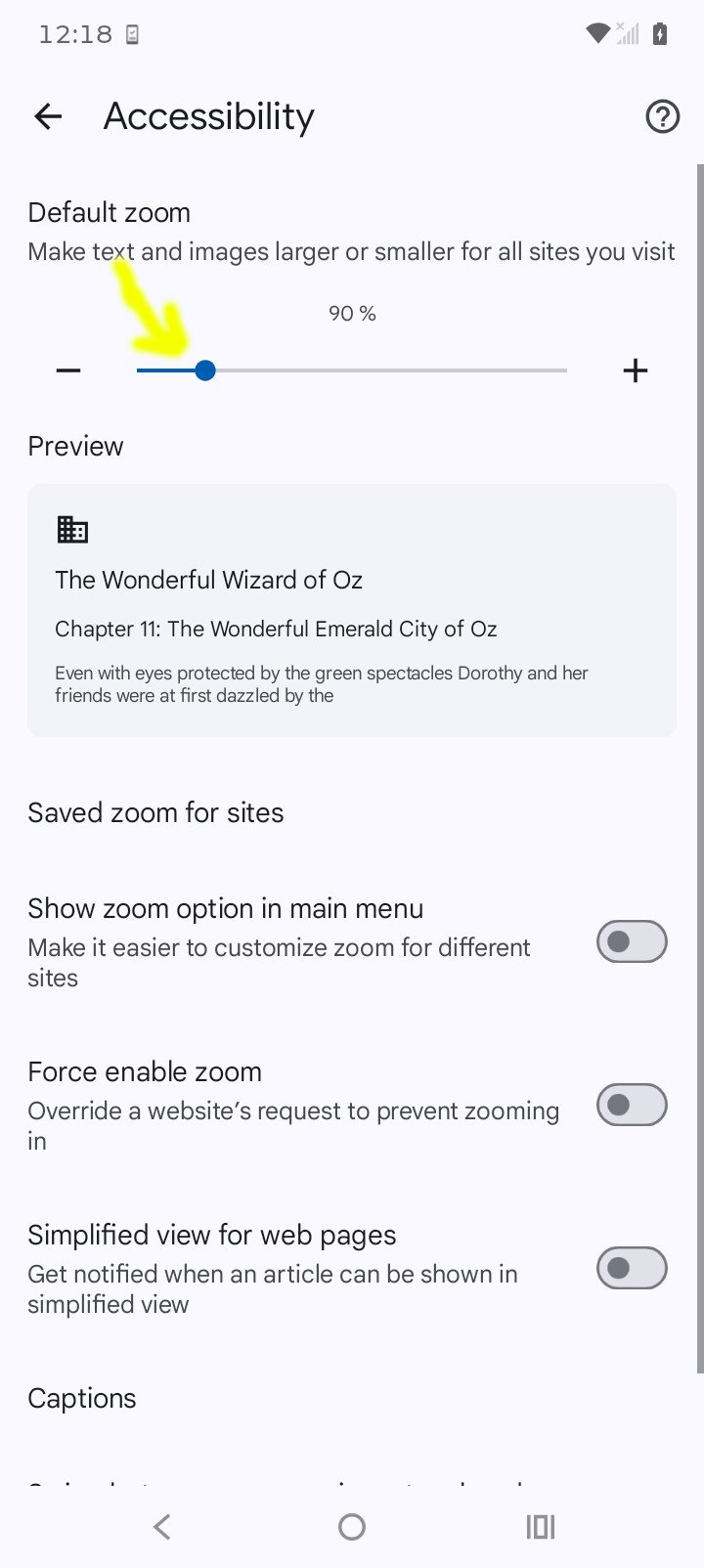
4. Tap the slider to fix scaling
6. Add your Google Calendar URL to Settings
Copy your Secret Address in iCal format from Google Calendar settings and paste it into the app's settings field. Its easier to do this in Windows. Go to calendar.google.com. Go to Settings. On the left hand side select your calendar, its usually your Name. Scroll to where the Secret Address in iCal format is located and click the Text Copy icon. go to skeemerapp.com and go to Settings. In the Google Events URL text box paste your Secret Address you copied. Tap Validate to see if it works or if you messed up. If its valid you can Save your settings.
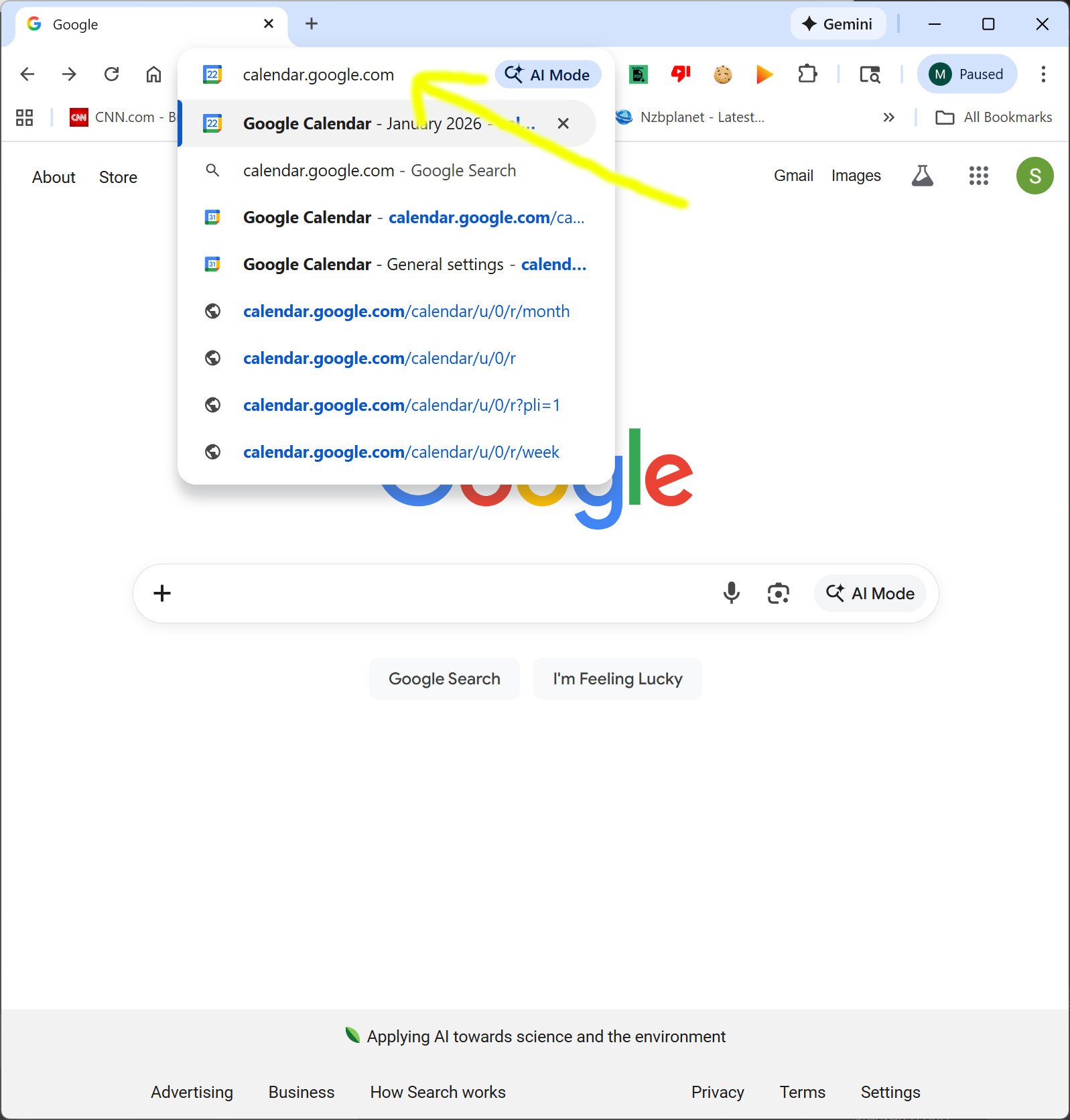
1. In Chrome, visit calendar.google.com
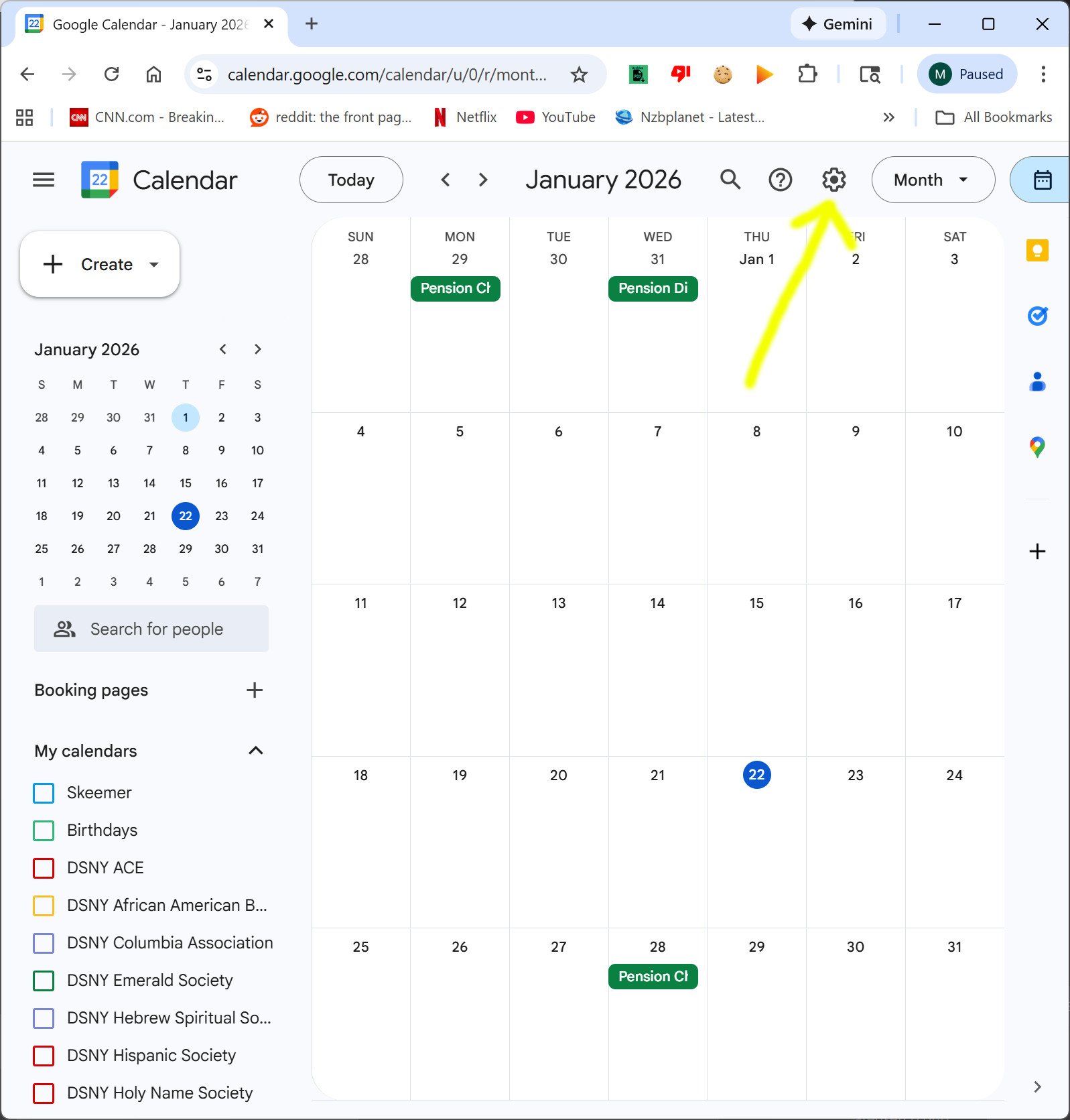
2. Tap the Settings icon
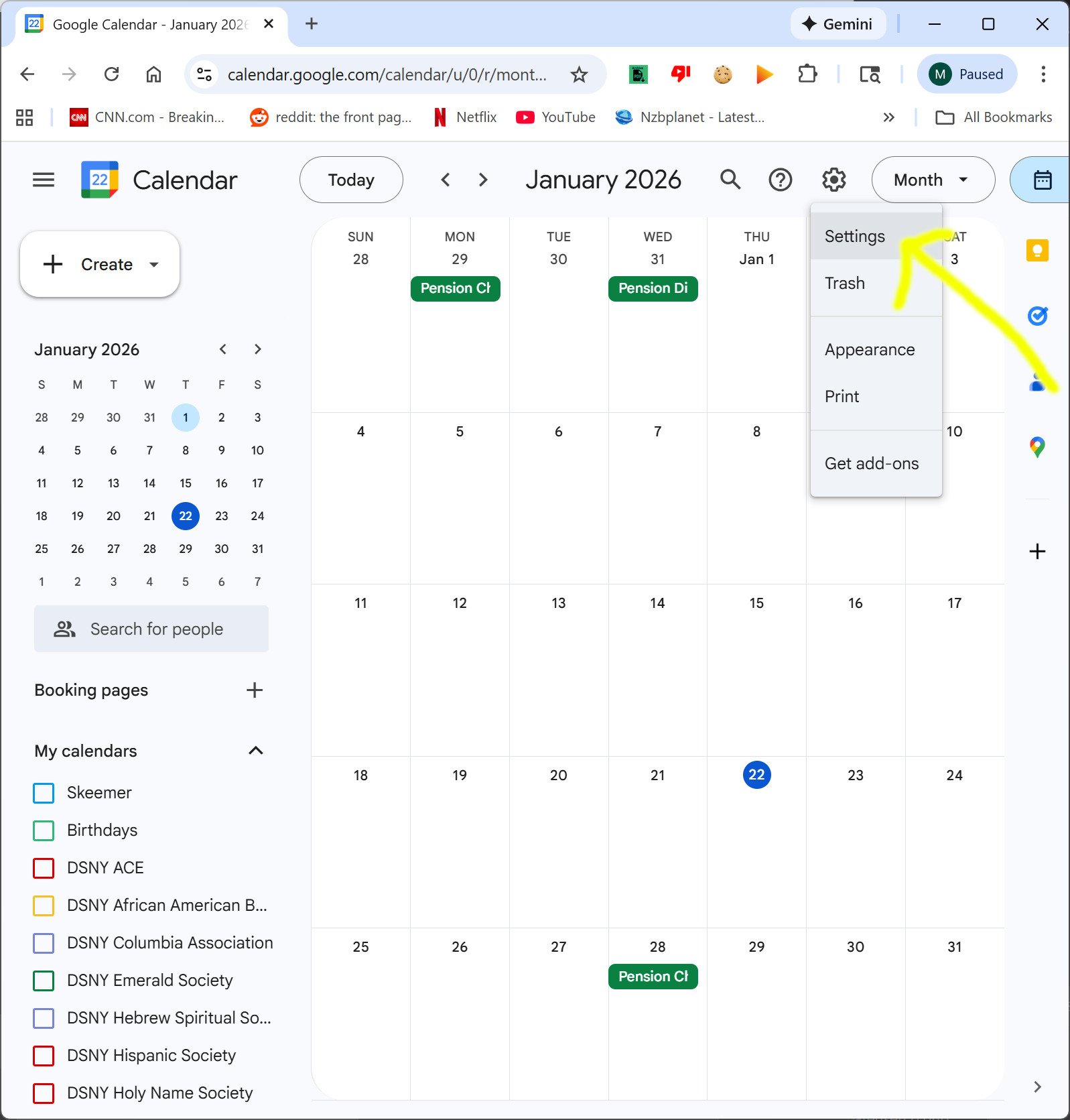
3. Tap Settings
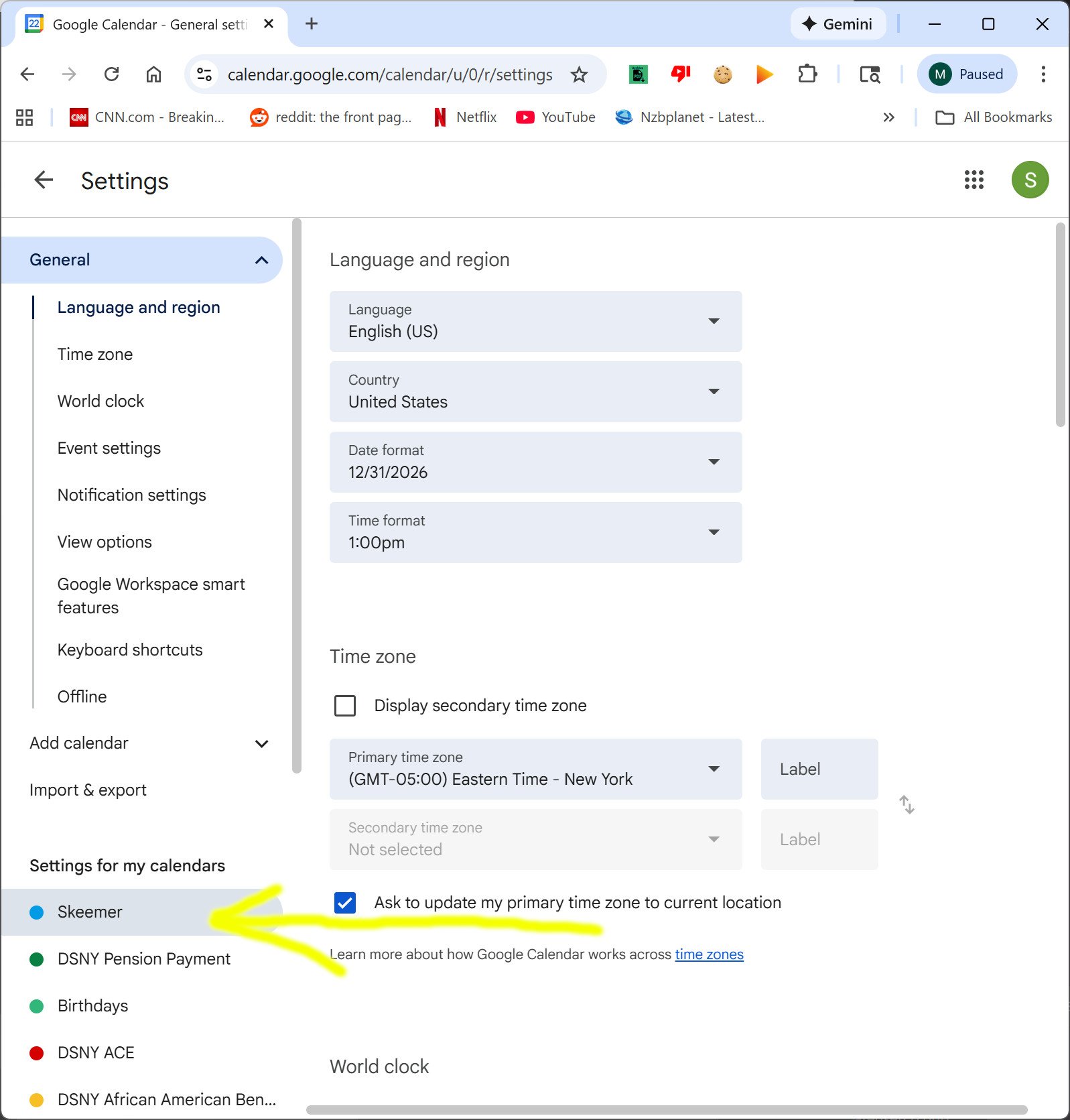
4. Select your calendar name
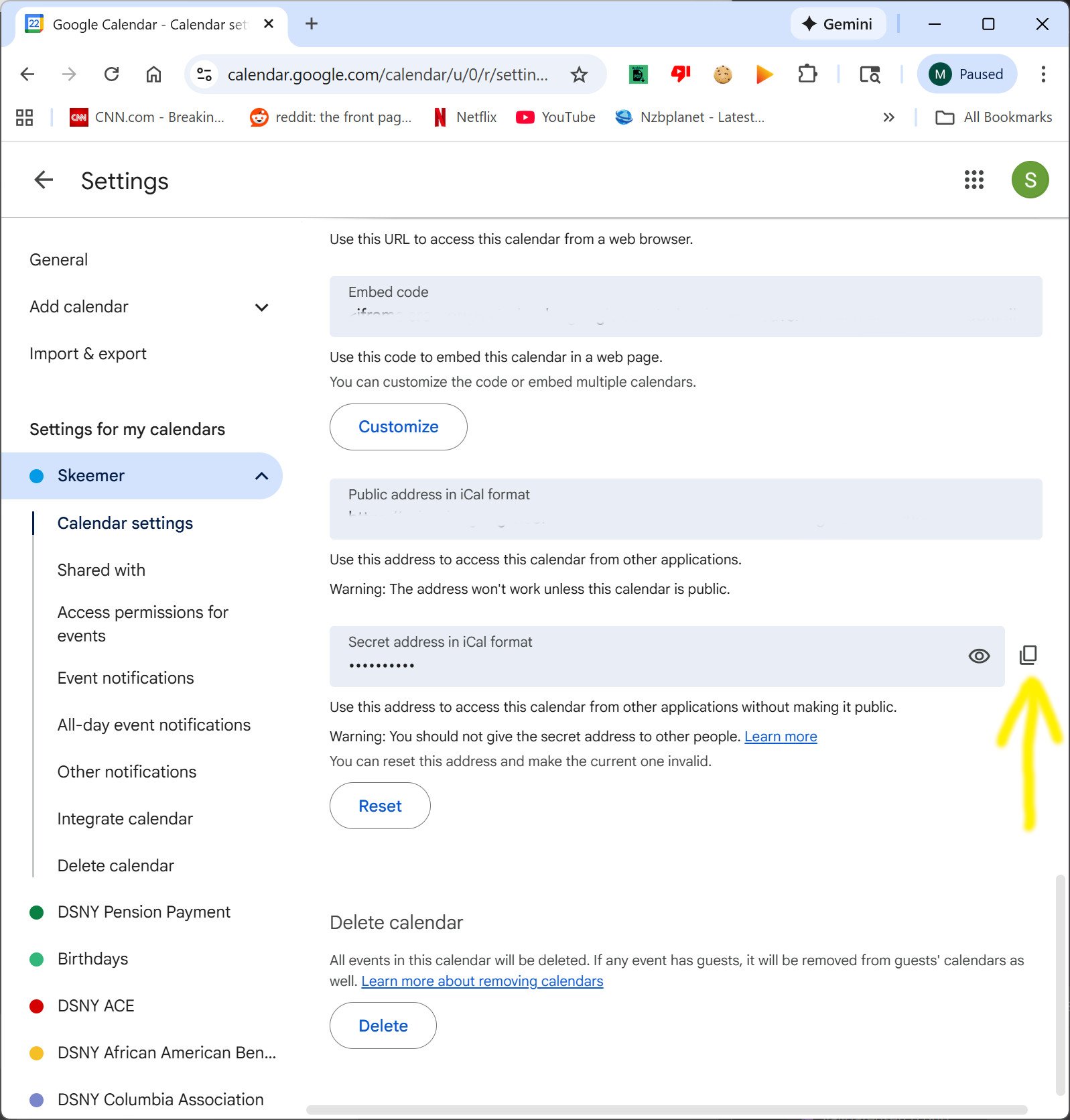
5. Tap text copy icon next to Secret Address in Ical Format box
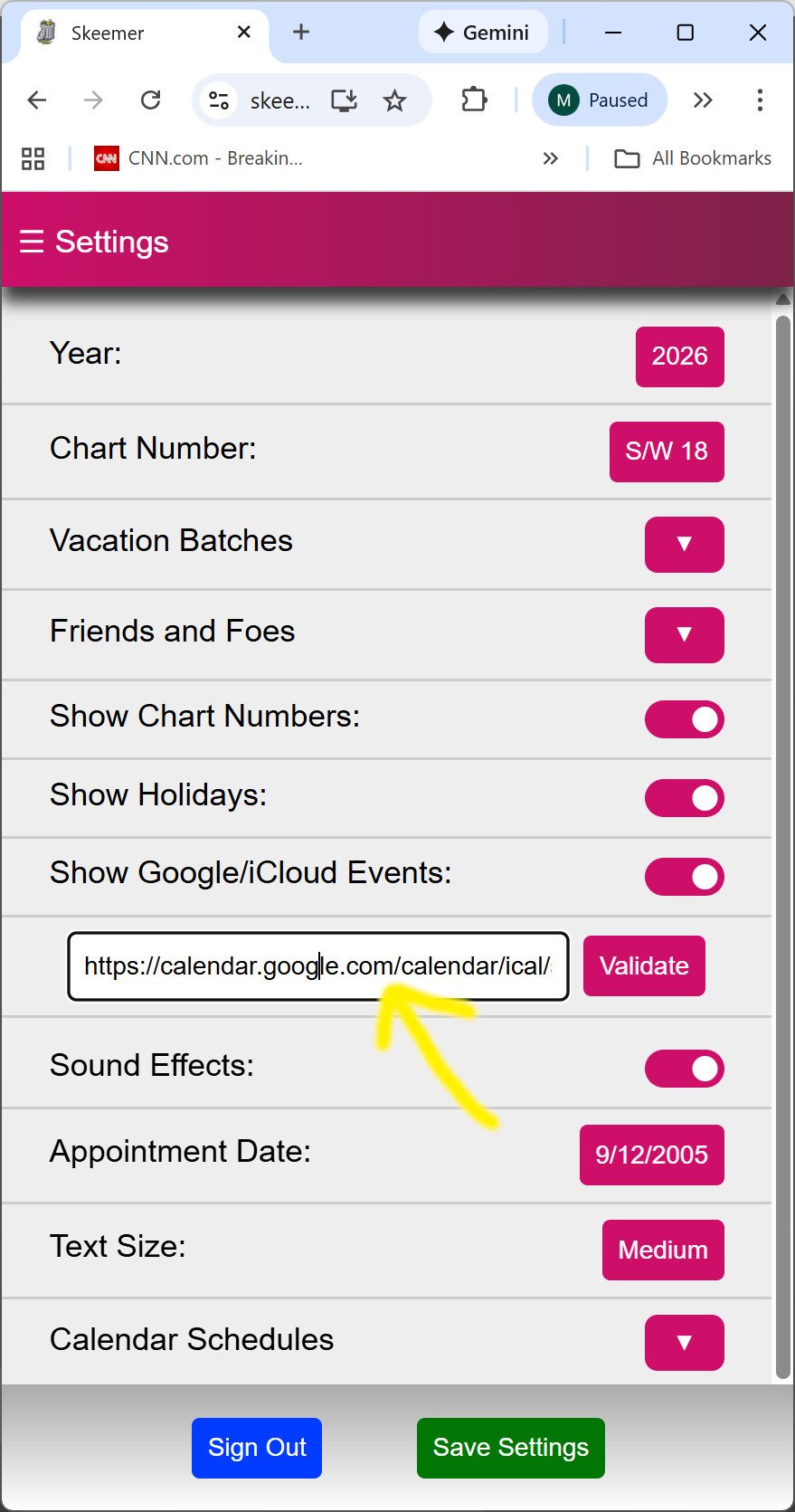
6. Go to skeemerapp.com/settings.html and paste the Secret Address in the Google Events text box
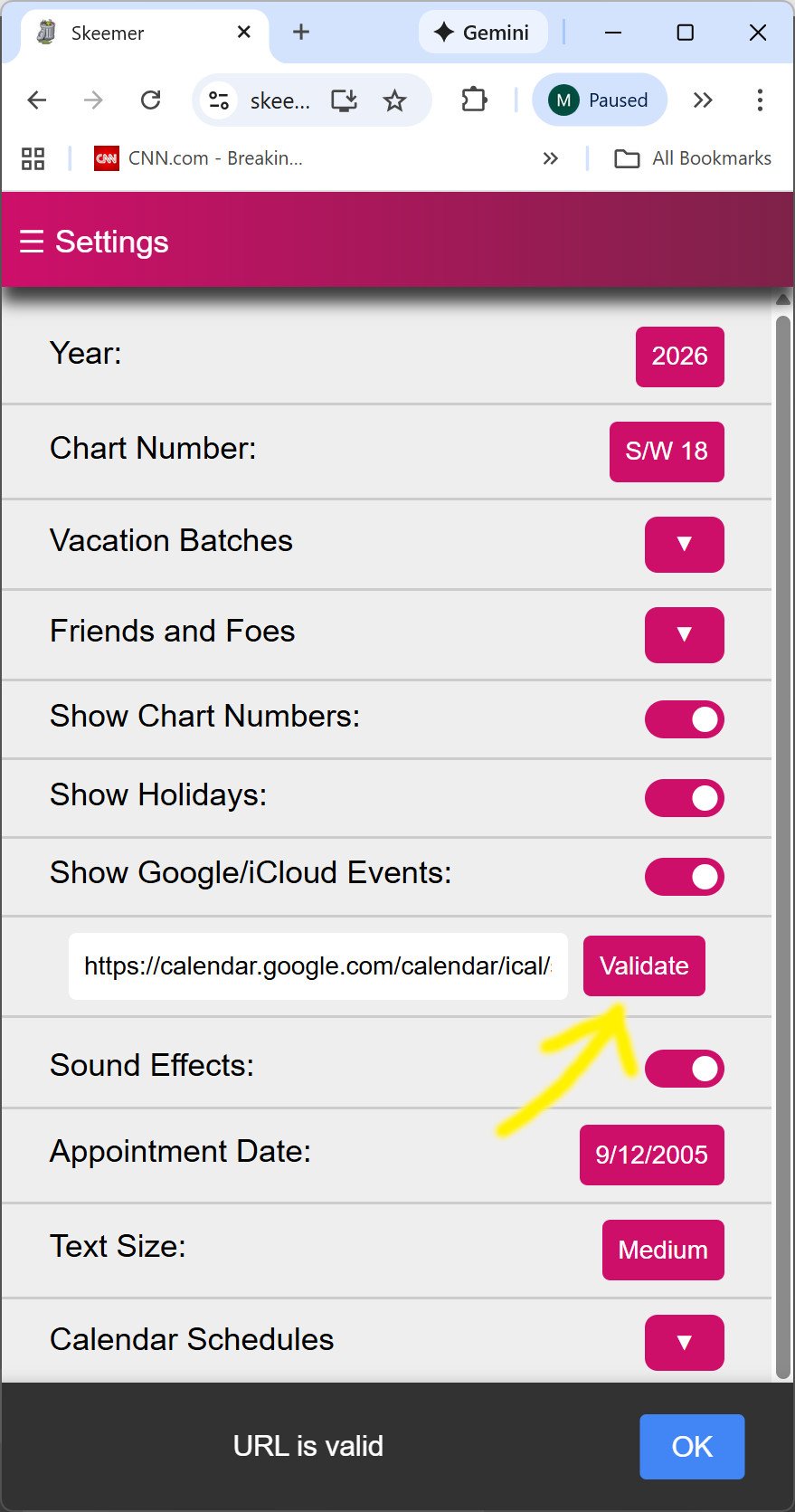
7. Validate the URL and Save Settings if URL is valid.
7. Restore From Android Backup
You need an Active License to use this feature. Open old Android Skeemer (latest version). Go to Backup/Restore. Tap top left Backup option to Backup to Local File. Create a folder if you need to. Select Folder and click Ok to backup to local file. Go to new Skeemer 3.0 and go to Restore. Tap Choose File and select the skeemerdata.xml you just created during the backup. Tap Upload and Wait. Wait until upload is complete, don't close or move away from the page. Your data should be restored. If you have errors, then disable Wifi if you use Verzon Fios, or enable Wifi if using cable. If you are on a mobile network, make sure you have a strong 5G connection. Sometimes network issues can cause upload errors, especially when batch uploading 10 years of data in seconds.
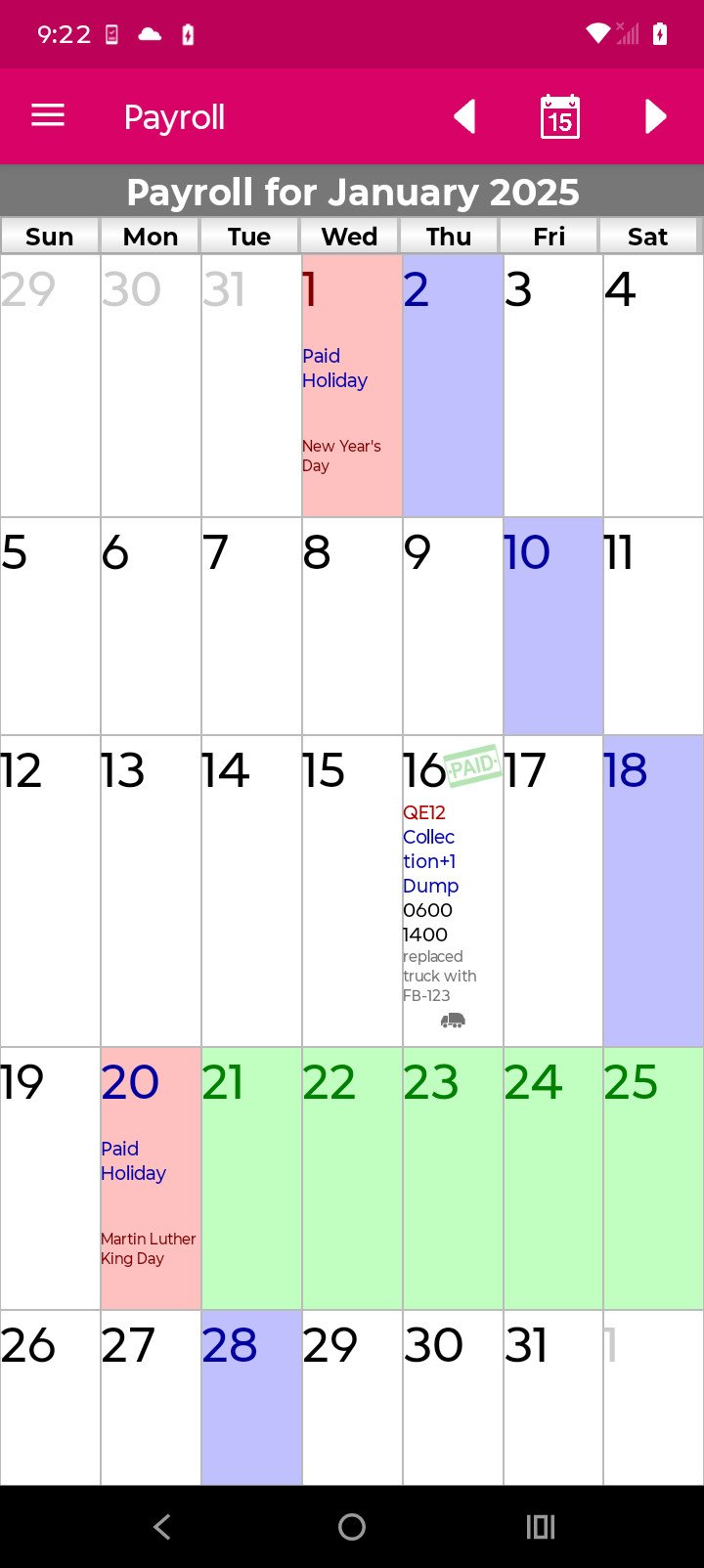
1. Open old Android Skeemer (latest version)
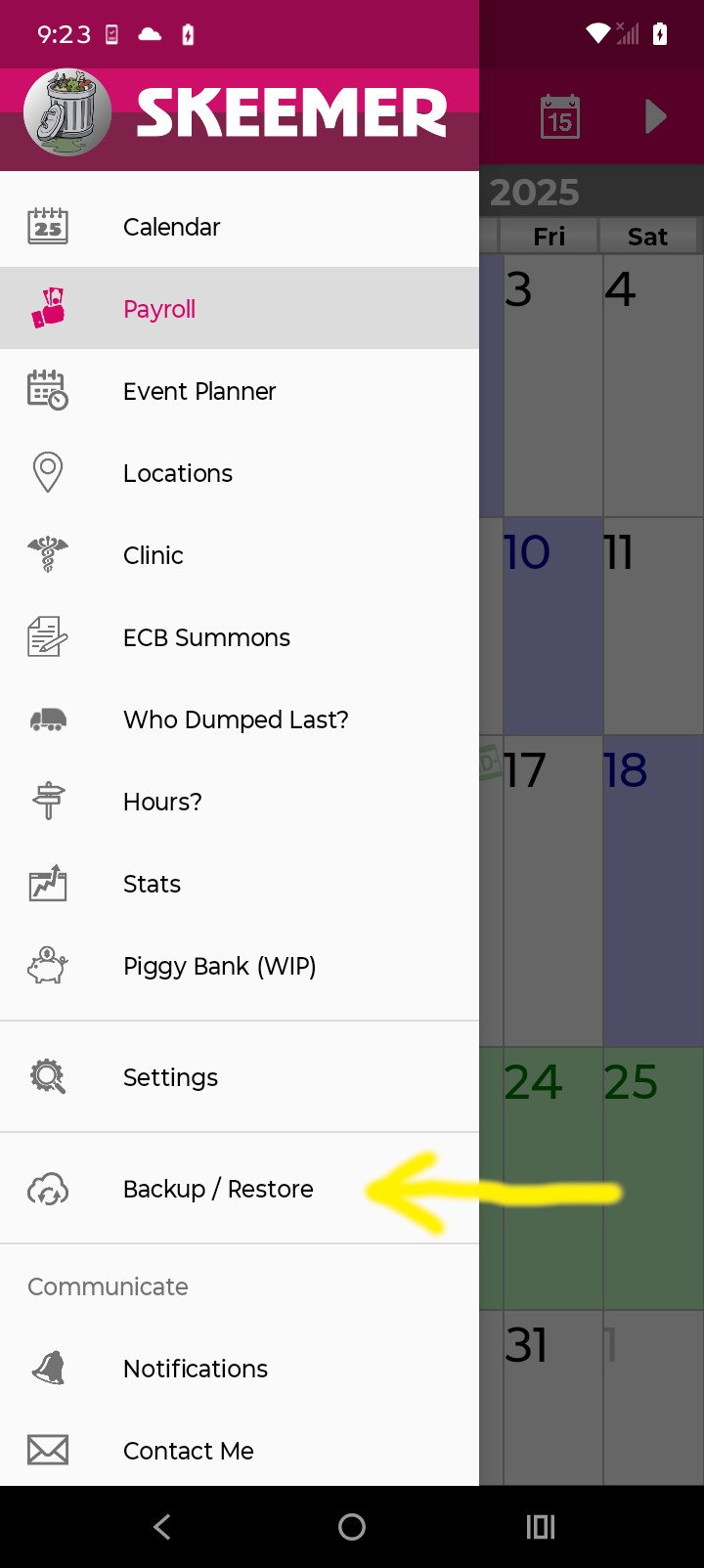
2. Go to Backup/Restore
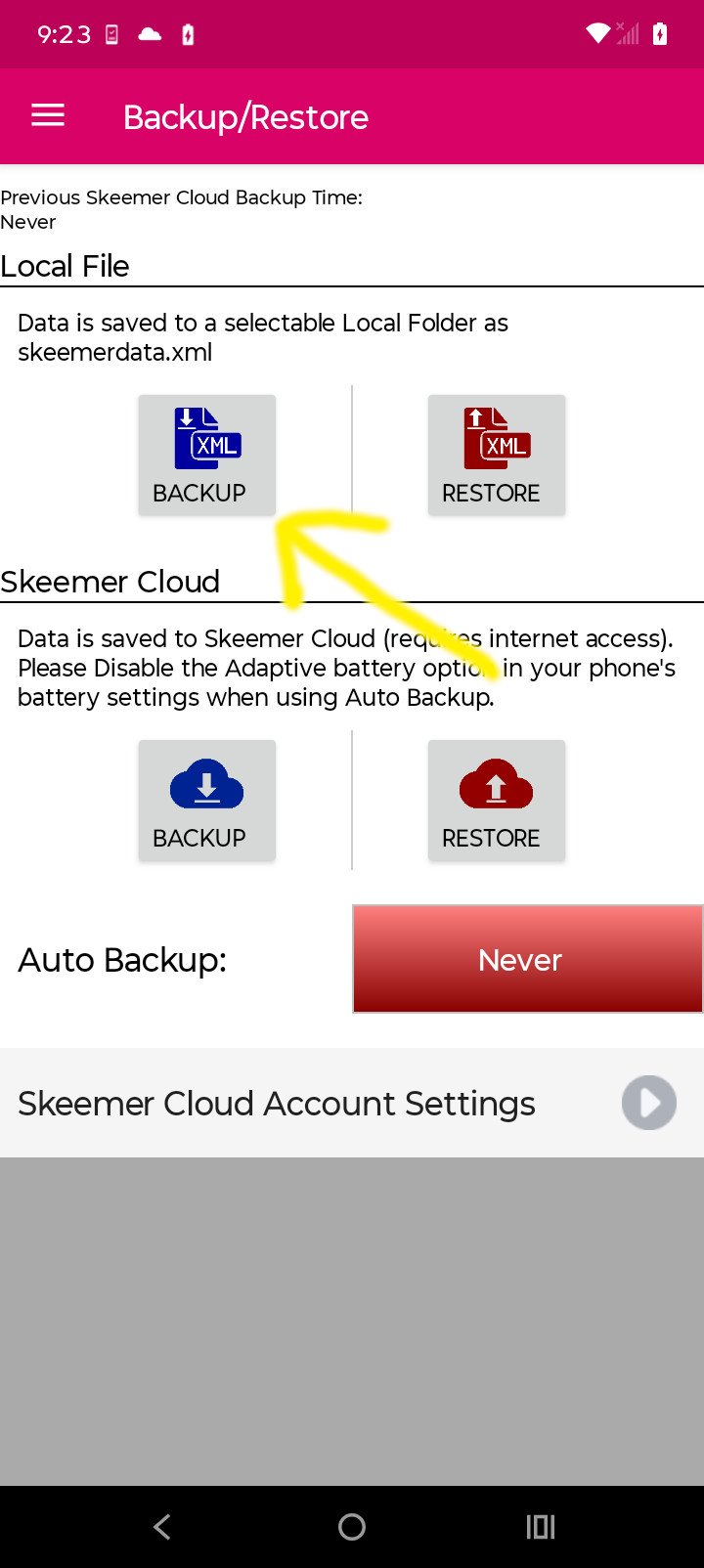
3. Tap Backup To Local File
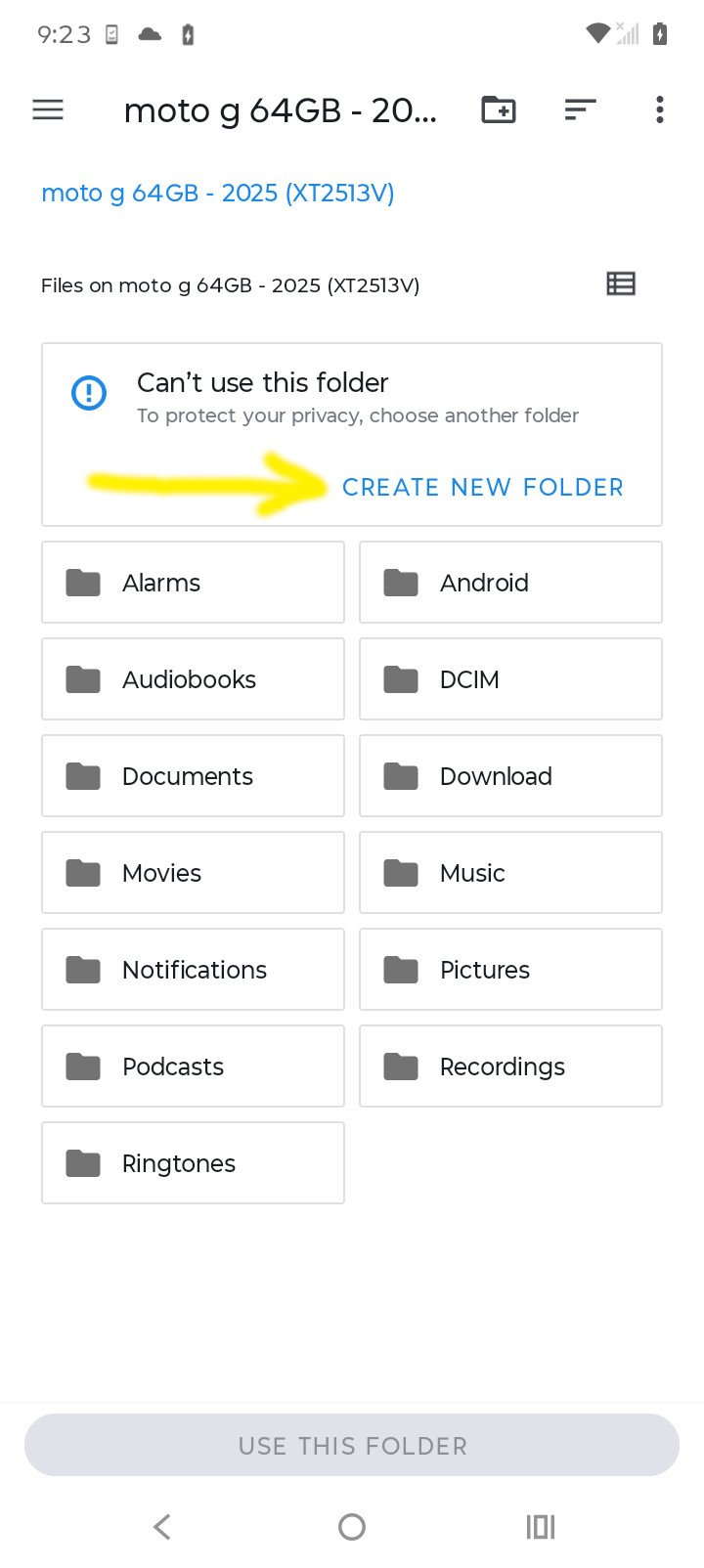
4. Create a New Folder if you need to.
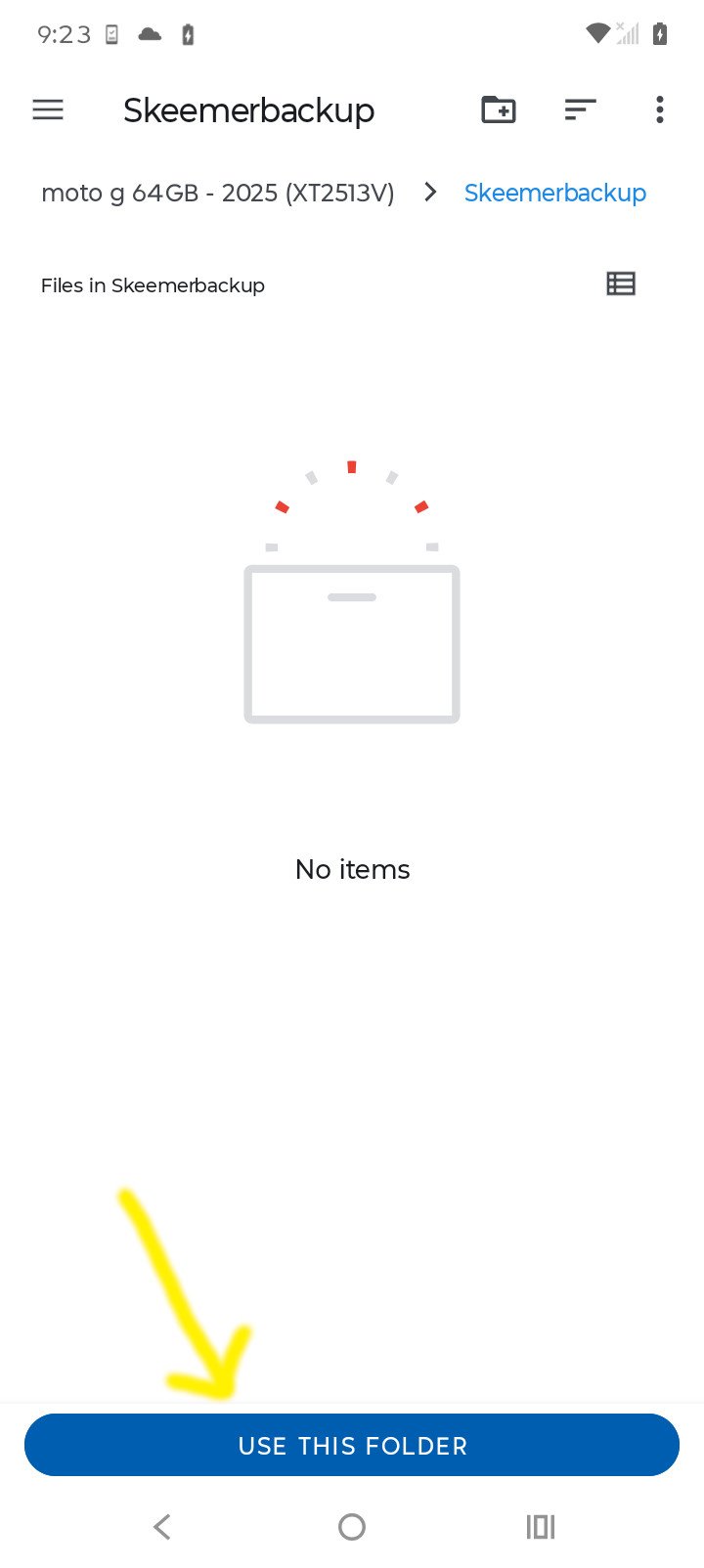
5. Tap Use This Folder
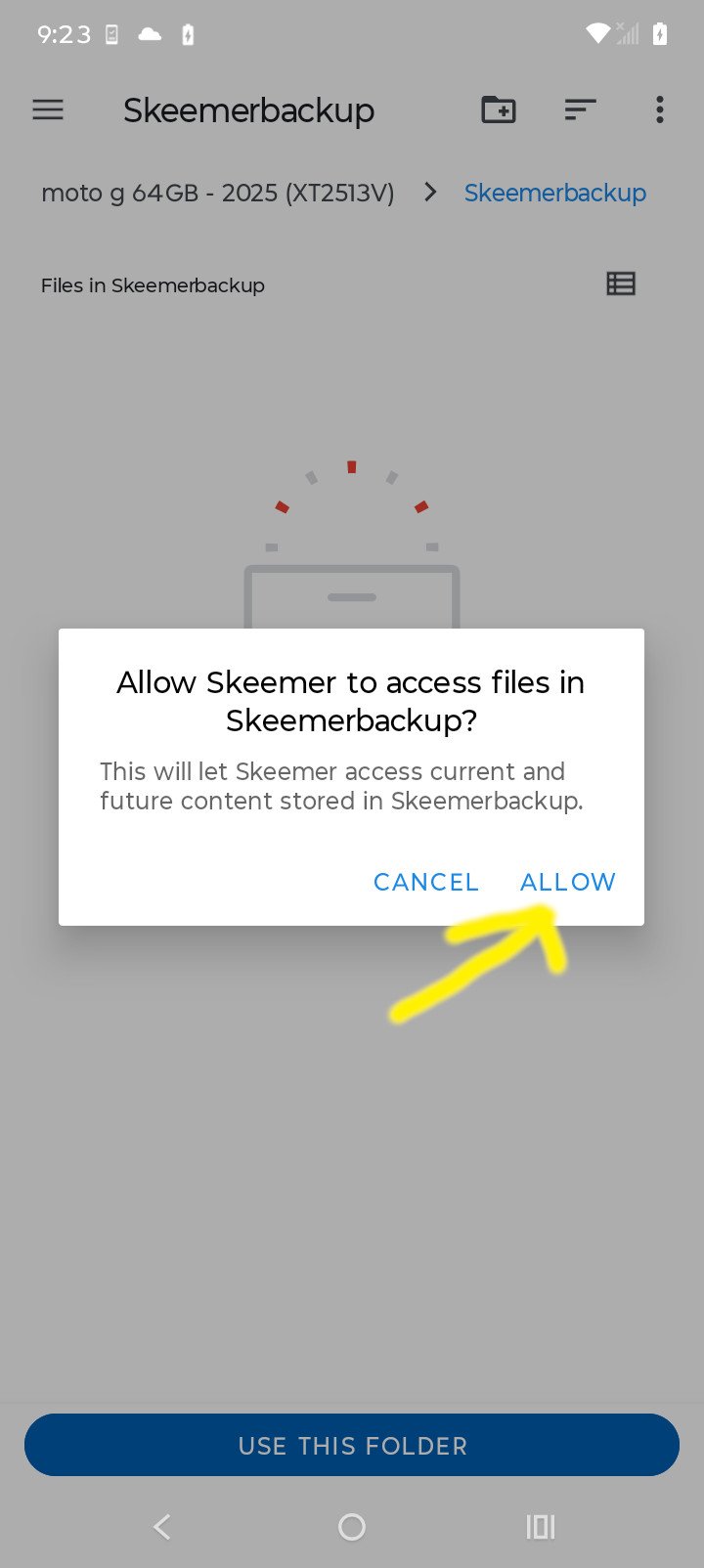
6. Tap Allow
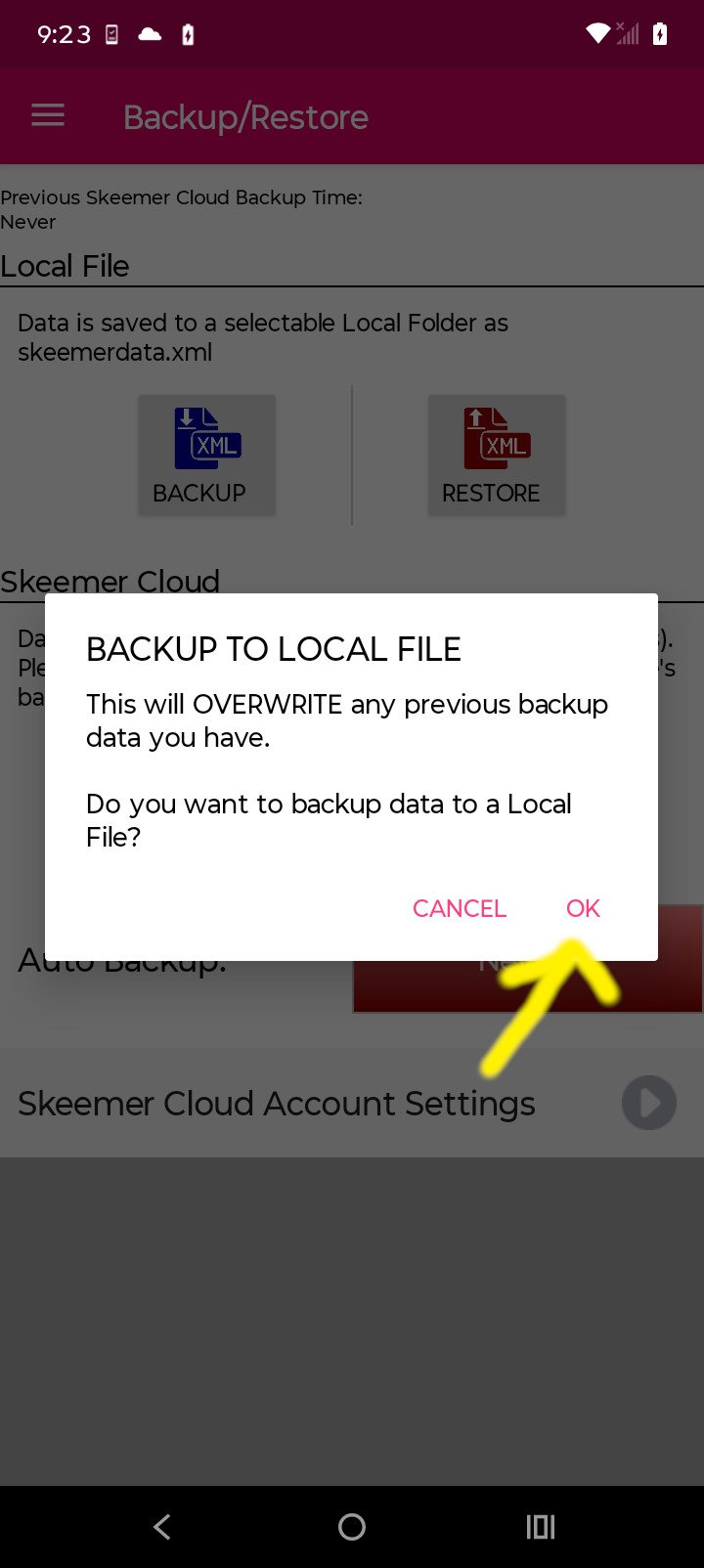
7. Tap OK to Backup
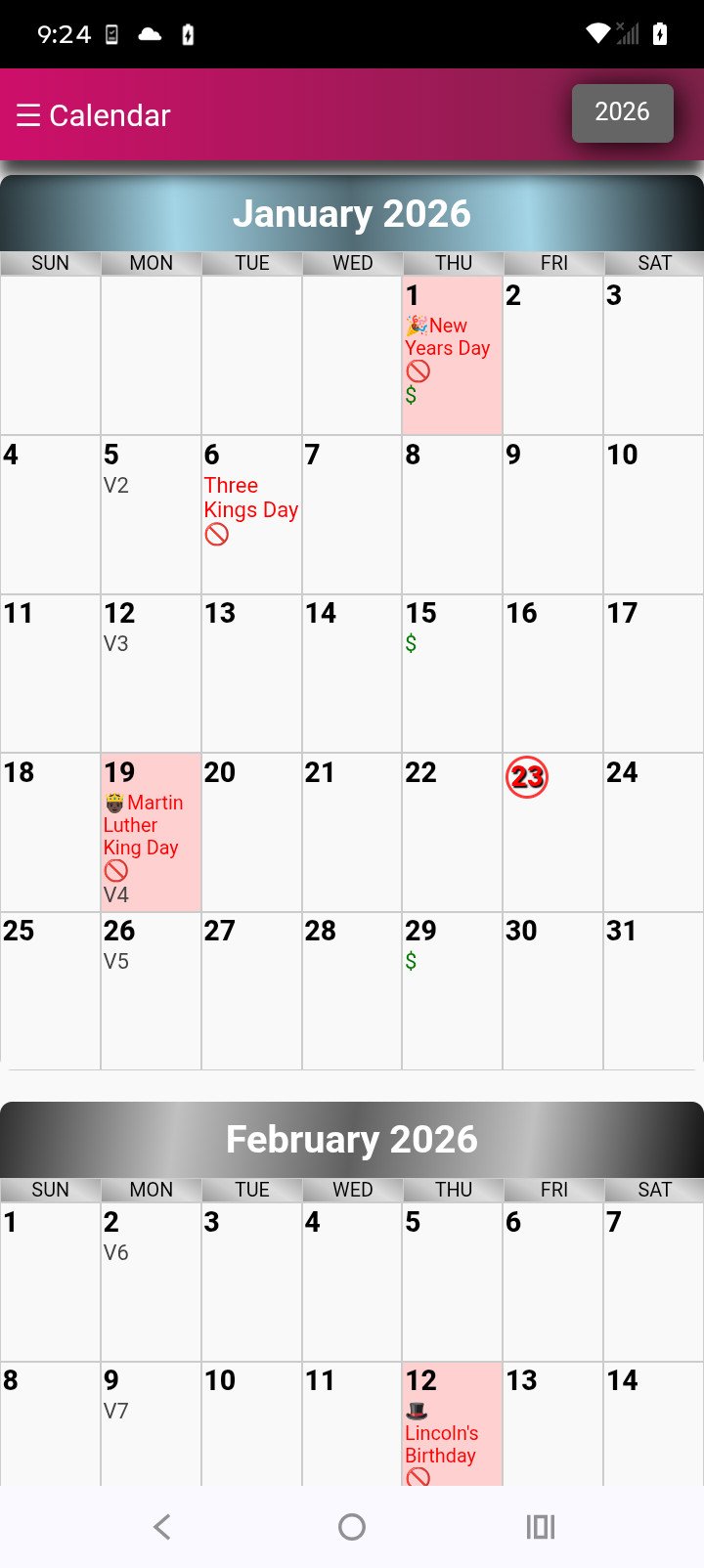
8. Go to new Skeemer 3.0
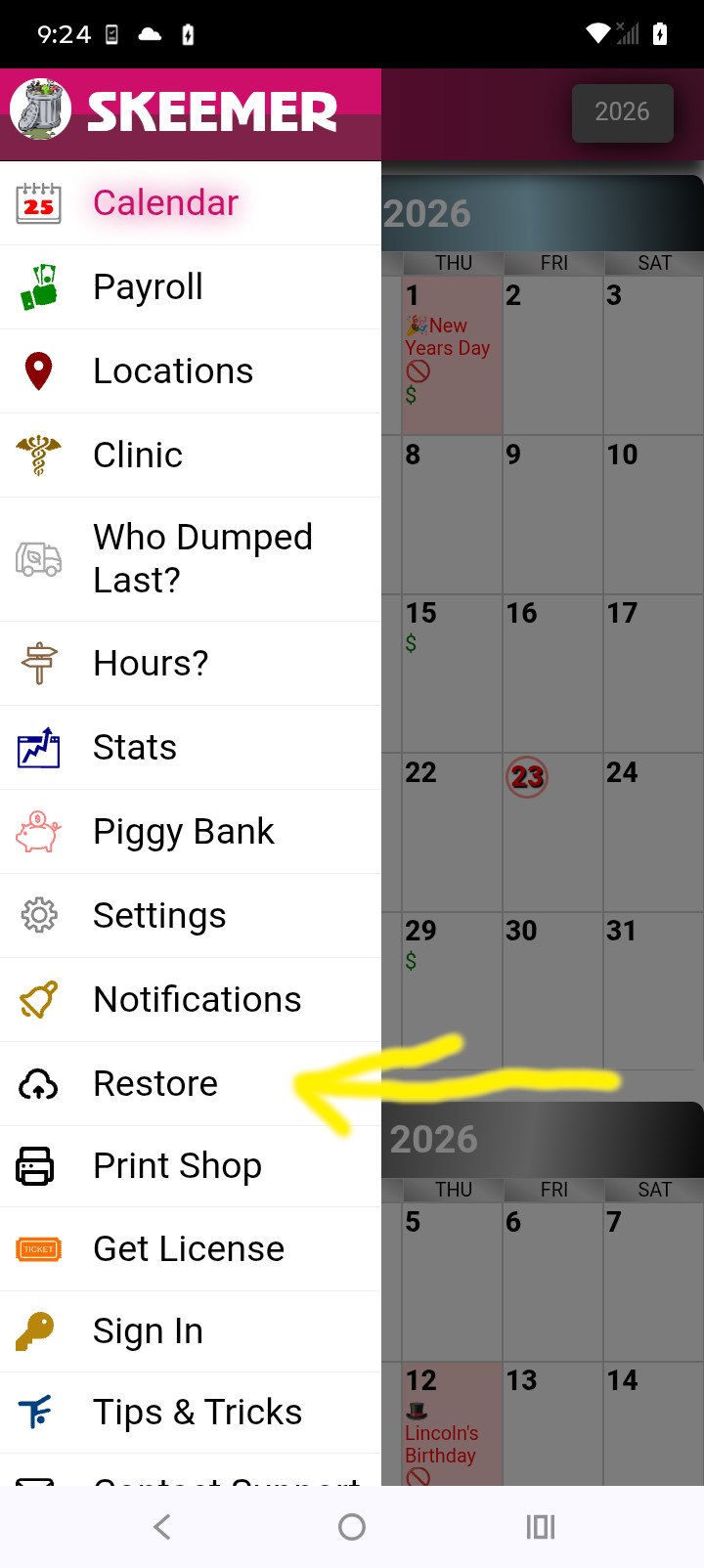
9. Go to Restore
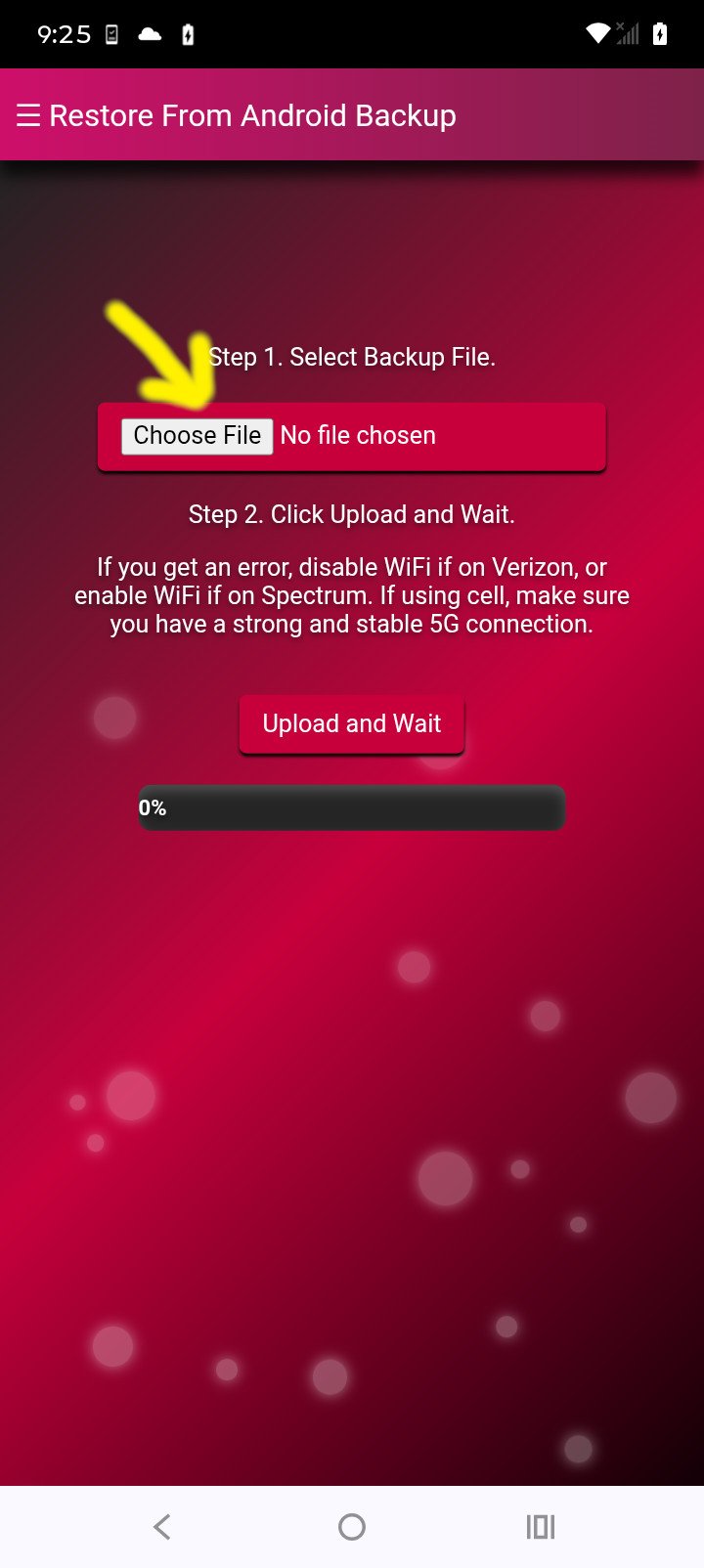
10. Tap Choose File
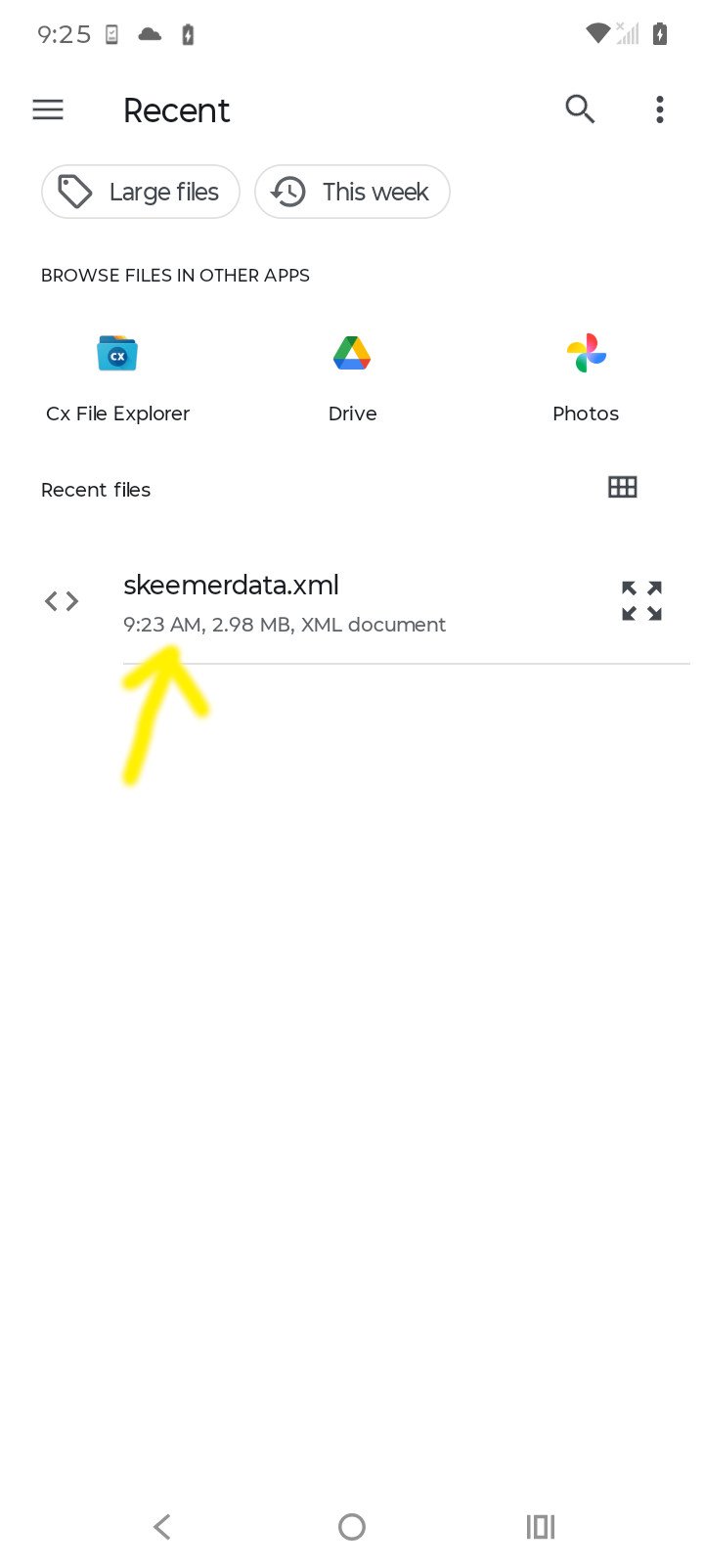
11. Select the skeemerdata.xml file you just created in old Skeemer
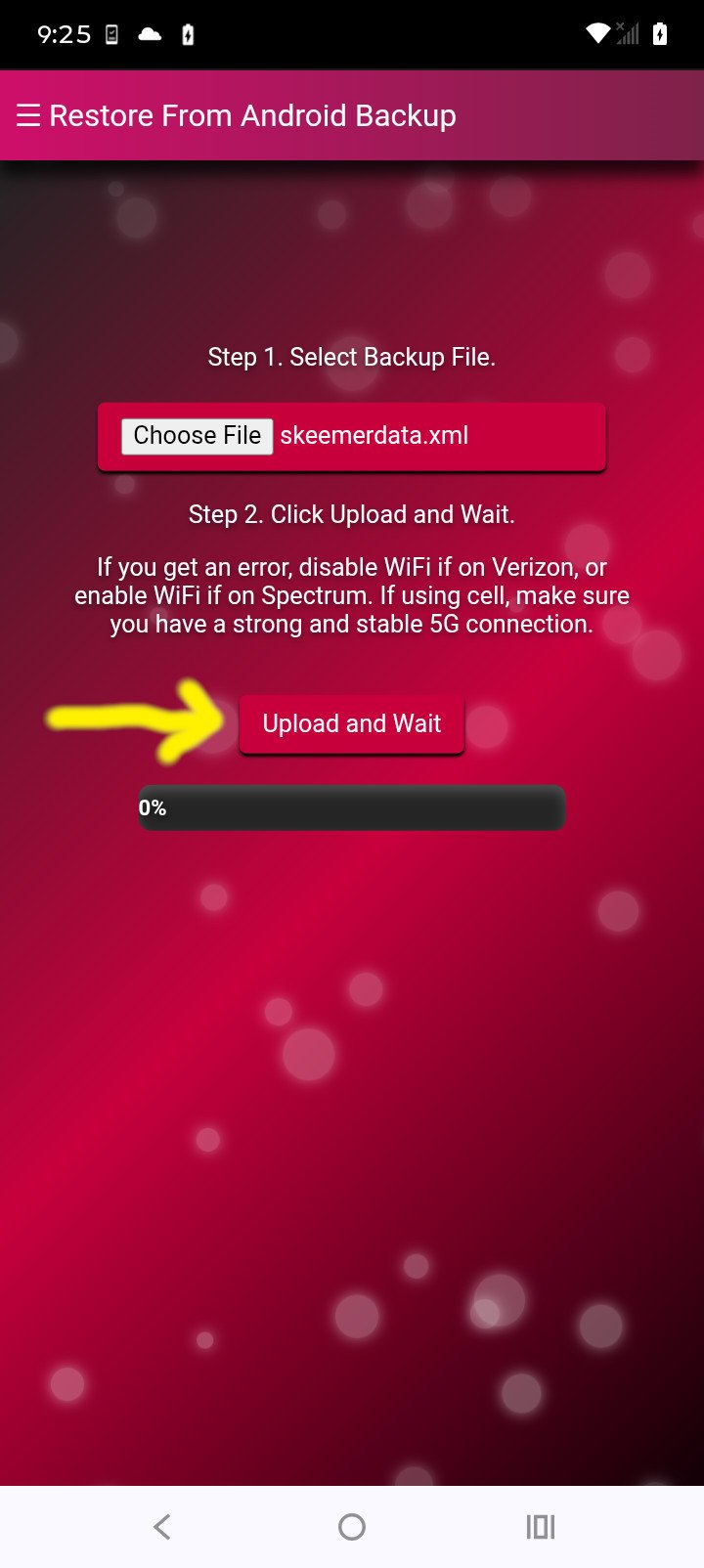
12. Tap Upload and Wait. Make sure you have a strong network connection. Don't leave page.
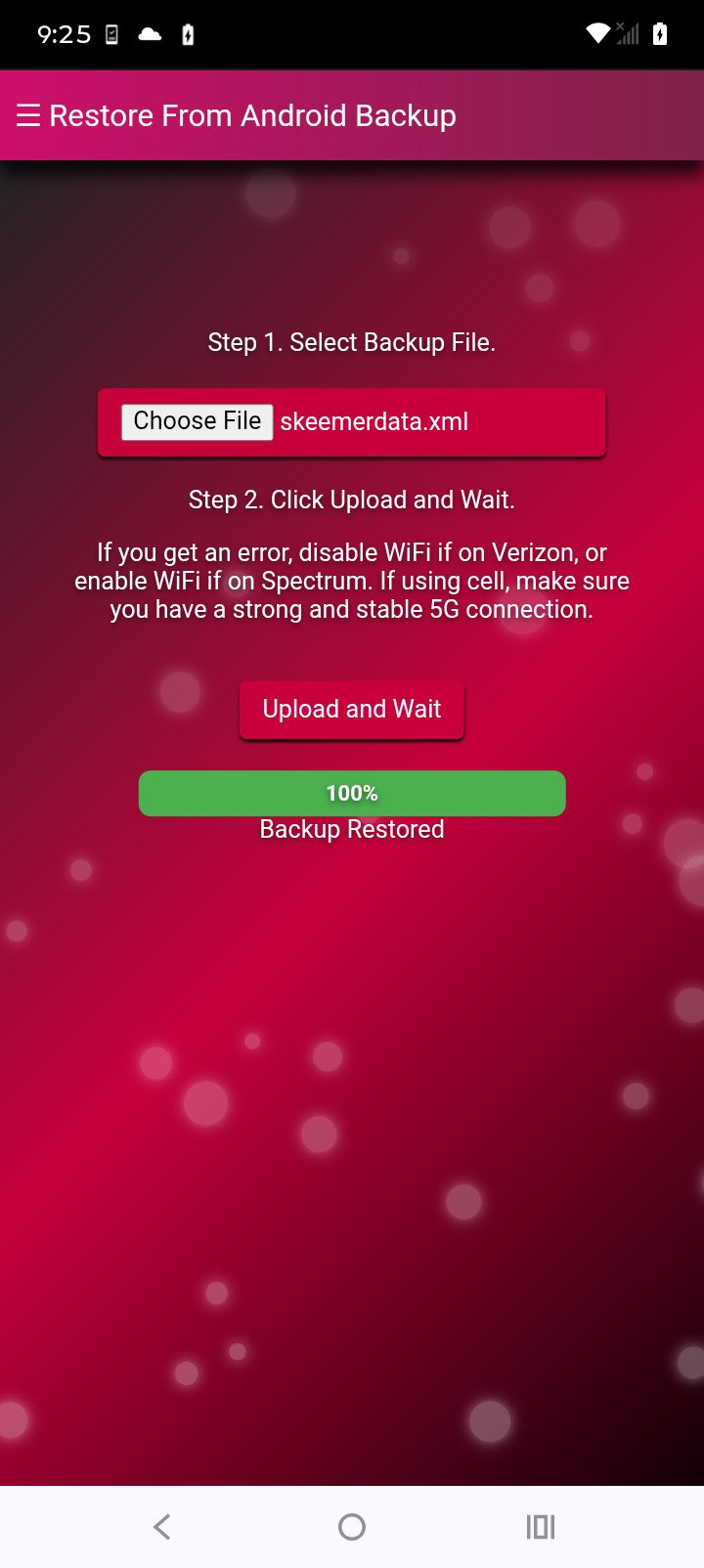
13. Wait until Backup is complete. If you have any errors, try disabling Wifi or enabling Wifi
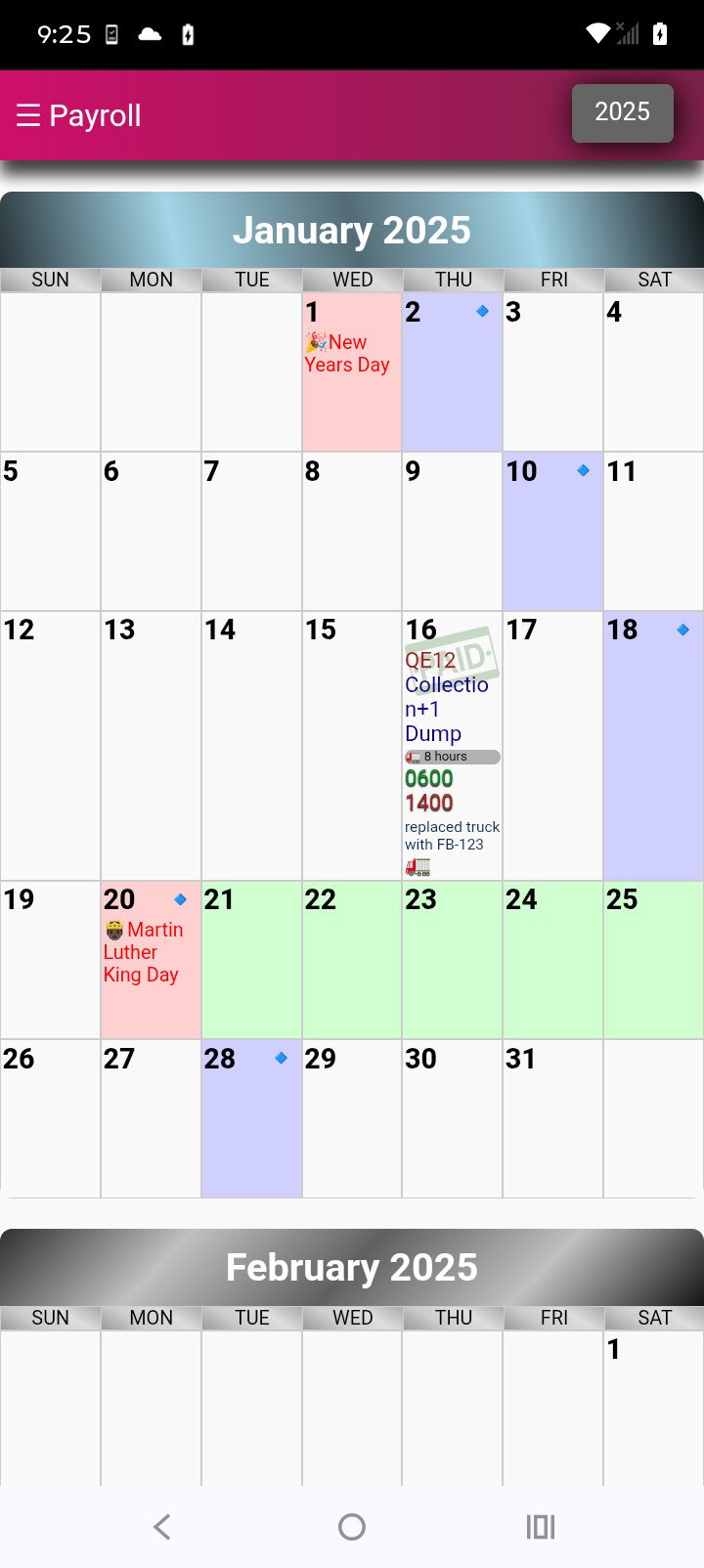
14. Go to Payroll or Settings to check your data.